.png?width=300&height=76&name=Logo_Chromatic(Formerly%20Quil%20LG).png)
Overview
CoRecruit has two distinct settings areas, each serving a different purpose:
- Settings (General tab) — where each member manages their own individual preferences. What you can change here depends on what your team admin has configured.
- Team Defaults — an admin-only page where admins set default values for the team and decide whether each setting can be adjusted by individual members or must stay fixed for everyone.

Both pages are accessed via the gear icon in the top navigation. Team Defaults is only visible to users with the appropriate admin permissions.
The Settings Page
Every member has access to a Settings page (labelled "General" in the navigation). This is where you manage your own personal preferences in CoRecruit, things like your recording language, how meetings are titled, and how your bot behaves among many others.
The settings you can change here depend on how your admin has configured each one. Some settings give you full control, others are locked at a team level and cannot be changed individually.
When a setting is available to you
If a setting has an active control: a toggle, a dropdown, or a button, that means you can change it. Your preference will be saved and applied to your account going forward.
When a setting is locked
Some settings may appear on your Settings page but are greyed out and cannot be edited. This means your team admin has set that setting to apply uniformly across the team. Hovering over the control will show a tooltip explaining that you don't have permission to make changes and to contact your admin if you need it updated.
Settings that are display-only, such as "Team Name" you show information relevant to your team but have no control at all, since they aren't configurable at the member level.
Team Defaults (Admins Only)
As a team admin, you may want certain settings to have a consistent baseline across your team, for example, ensuring everyone has recording disclosure enabled, or that bots auto-join external calls by default. Team Defaults is where you set those baselines.
You also decide how much flexibility to give your team: you can lock any setting so everyone uses the same value, allow all settings to be individually adjusted, or find a middle ground where some settings are fixed and others are left to each member's preference.

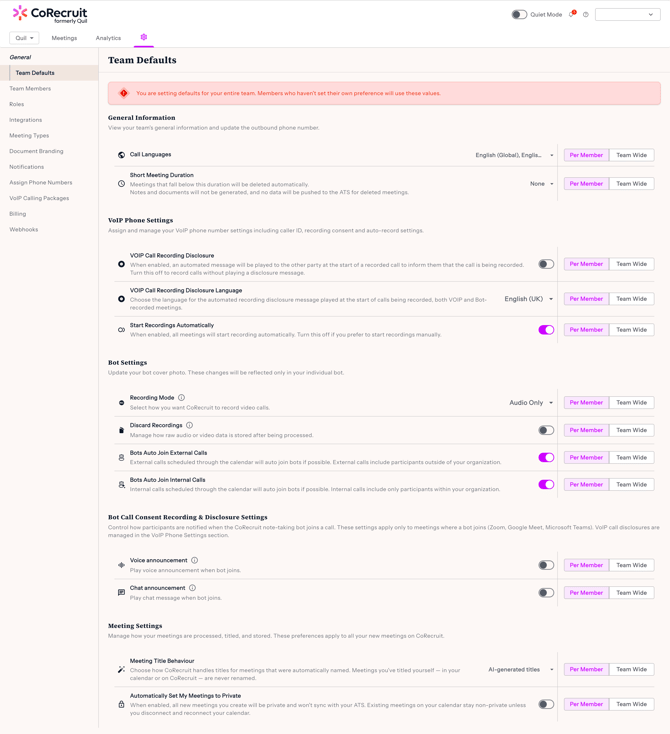
Team Defaults is a separate admin-only page where you configure what the rest of the team experiences. From here you can:
- Set a default value for each member-configurable setting
- Decide whether each setting can be overridden by individual members (Per Member) or must apply uniformly to everyone (Team Wide)
|
Important |
|
You are setting defaults for your entire team. Members who haven't set their own preference will use these values. |
Per Member vs. Team Wide
Each setting on the Team Defaults page has two scope buttons: Per Member and Team Wide. These control whether members can adjust the setting themselves.
|
Per Member |
Team Wide |
|
The value you set becomes the default. Members can go into their own settings and change it to something different. |
The value you set applies to everyone. Members will see the setting on their page but cannot change it. A tooltip tells them to contact their admin. |
What happens when you change the scope
Switching Per Member → Team Wide: Any individual preferences members had saved for that setting are removed. Everyone immediately uses the Team Wide value you've set.
Switching Team Wide → Per Member: The lock is lifted and any preferences members had previously set are restored. Members can adjust their individual settings again from this point.
How defaults are applied
When a setting is Per Member, the value a member experiences follows this order:
- Their own saved preference — if they've set one
- Your team default — if they haven't set a personal preference
Your team default only fills the gap for members who haven't made their own choice. It never overrides a preference a member has explicitly set.
When a setting is Team Wide, the team value always applies to everyone, regardless of individual preferences.
Resetting to the team default
There is no dedicated reset button. If a member wants to match the team default, they simply update the setting manually in their own Settings page.
Who Can Access Team Defaults
Access to Team Defaults is controlled by your team's role permissions. CoRecruit ships with three default roles:
- Admin — full access to Team Defaults and all admin settings
- Contributor — member-level access only; cannot view or edit Team Defaults
- Viewer — read-only access; cannot edit any settings
Teams can also create custom roles with specific permission sets. If you need access to Team Defaults and don't currently have it, contact your team administrator.
Frequently Asked Questions
A setting on my Settings page is greyed out. Why can't I change it?
Your team admin has set that setting to Team Wide, meaning it applies uniformly across the team. Hover over the setting to see a tooltip confirming this. If you need it changed, contact your team administrator.
I updated a Team Default but a member is still using a different value. Why?
If the setting is Per Member, members with a personally saved preference will continue using their own value — your default only applies to members who haven't set one. If you want the value to apply to everyone, switch the setting to Team Wide.
I switched a setting to Team Wide. What happened to members' individual preferences?
They were cleared. When a setting is locked Team Wide, any existing member preferences for that setting are removed and everyone uses the team value. If you switch back to Per Member later, those preferences are restored.
Will Team Defaults apply to new members who join the team?
Yes. New members automatically inherit your team defaults for all Per Member settings until they set their own preferences.
Can I give someone other than an Admin access to Team Defaults?
Yes, if your team has custom roles configured. An administrator can grant Team Defaults access to any role through the Roles section in admin settings.
Need help? Reach out to our support team or visit help.corecruit.com.