.png?width=300&height=76&name=Logo_Chromatic(Formerly%20Quil%20LG).png)
How it works
When a meeting in CoRecruit finishes, CoRecruit sends a webhook, which is a message containing the meeting details to a URL that Atlas gives you. That message includes who owned the meeting, who took part in it, and other meeting details.
Atlas reads this information and uses it to work out which candidate profile the notes belong to, then adds your AI meeting notes, summaries, transcripts, and recordings to that profile automatically.
You only need to set this up once. After that, every completed meeting flows through automatically.
Setting up the integration
You'll need access to both your Atlas dashboard and CoRecruit to complete these steps.
- In your Atlas dashboard, go to Settings > Company Settings > Apps and find the CoRecruit app under Meeting notes.
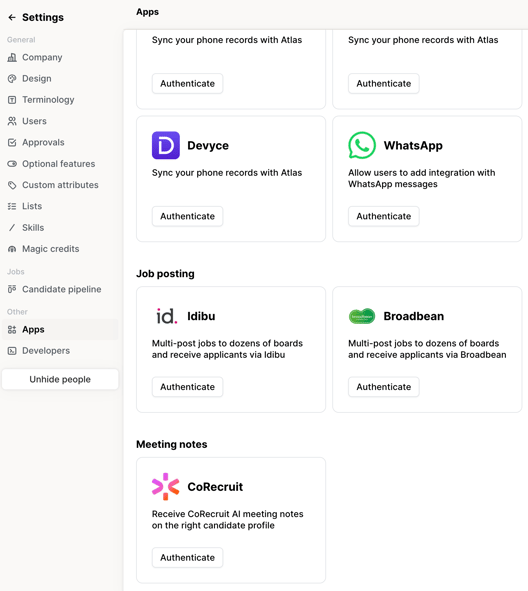
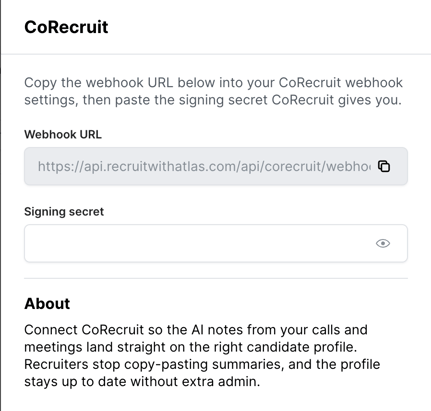
- Click Authenticate. Atlas shows you a Webhook URL — copy this.
- Switch to your CoRecruit dashboard on your Web App (https://app.corecruit.com) and go to the gear icon in the top navigation, then select Webhooks from the settings menu.
- Click + Create.
- In the Name field, give the webhook a name you'll recognise later — something like Atlas Integration works well.
- Paste the URL you copied from Atlas into the URL field.
- In Event Types, select Meeting Completed. This is currently the only event CoRecruit sends.
- Click Create.
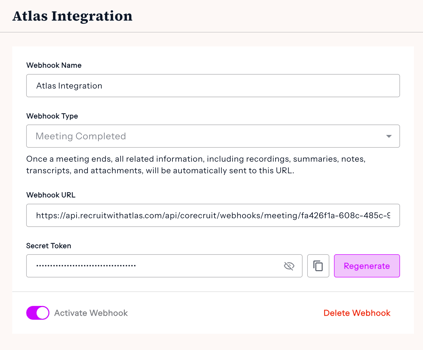
- CoRecruit generates a Secret Token for your new webhook. Click the eye icon to reveal it, then copy it.
- Go back to Atlas and paste the value into the Signing secret field.
- Click Connect CoRecruit in Atlas to finish.
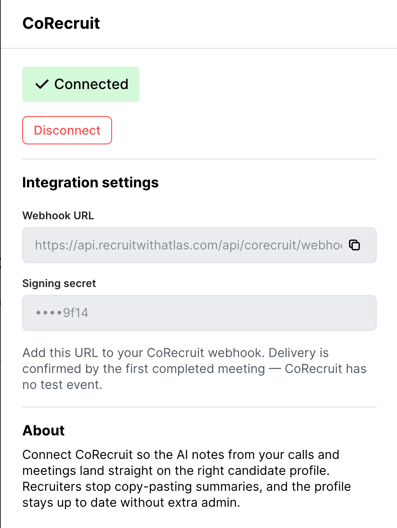
Once connected, CoRecruit sends meeting details to Atlas automatically every time a meeting is completed — you don't need to do anything else.
Note: Anyone on your CoRecruit team can set up this integration, as long as their role gives them access to webhook settings. It isn't restricted to admins.
Managing your webhook
From the Webhooks page in CoRecruit, you can manage the connection at any time:
- Activate Webhook — toggle this off to pause sending meeting data to Atlas without deleting the webhook.
- Regenerate — creates a new secret token. If you regenerate it, you'll need to update the signing secret in your Atlas dashboard too, or Atlas won't be able to verify the data it receives.
- Delete Webhook — removes the webhook entirely. You'll need to set it up again from scratch if you want to reconnect later.
- Webhook Logs — shows each delivery attempt, its status, and the timestamp. If a delivery fails, you can view the details or click Retry.
Tip: If meeting notes stop showing up in Atlas, check the Webhook Logs first — a run of failed deliveries usually means the URL or signing secret no longer matches what's in Atlas.
Frequently asked questions
What information does CoRecruit send to Atlas?
CoRecruit sends the meeting name and time, the meeting owner, the participants, and links to the recording, transcript, summary, and any action items. Atlas uses the owner and participant details to match the data to the right candidate profile.
Do I need to do anything in CoRecruit after a meeting?
No. Once the webhook is connected, CoRecruit sends the meeting details to Atlas automatically as soon as the meeting is marked completed.
Who can set this up?
Anyone on your team whose role includes access to webhook settings — this isn't limited to account admins.
What happens if the webhook delivery fails?
CoRecruit retries failed deliveries automatically and logs each attempt on the webhook's page. You can also retry a failed delivery manually from the Webhook Logs.
Can I disconnect Atlas later?
Yes. Deactivate or delete the webhook from the Webhooks page in CoRecruit. Deactivating pauses the connection without losing your setup, while deleting removes it entirely.
What if I lose my signing secret?
You can view it again at any time from the webhook's detail page in CoRecruit using the reveal icon, or generate a new one with Regenerate (you'll then need to update it in Atlas as well).