.png?width=300&height=76&name=Logo_Chromatic(Formerly%20Quil%20LG).png)
1. Joining the Call:
- Start by opening your video call on your preferred video conference platform. Ensure that the note taker bot has joined; you’ll see its image in the call interface.

2. Testing the Bot's Microphone:
- To ensure that the bot is listening, verify if its image is visible. If so, then you can unmute your microphone and speak.
3. Accessing Bot Controls:
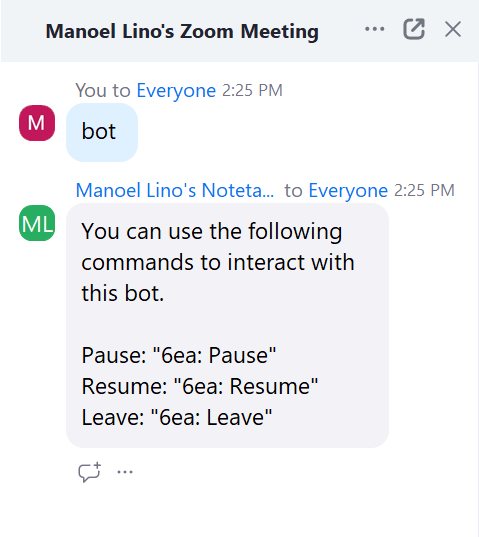
- To open the bot controls, open the chat within your video call. Type "bot" to receive a list of control options, including pause, resume, and leave.
4. Using Bot Commands:
- Pause the Bot: Copy the provided "pause" command and send it in the chat. The bot's image will disappear, indicating it is no longer taking notes nor listening.
- Resume the Bot: Copy the "resume" command and send it in the chat. Then wait until the bot's image reappears, confirming it has resumed taking notes.
- Leave the Call: To remove the bot from the call, copy the "leave" command and send it in the chat. The bot will exit the call entirely.
5. Additional Commands
- The command "CoRecruit end all" will kick out all CoRecruit bots inside a call.