.png?width=300&height=76&name=Logo_Chromatic(Formerly%20Quil%20LG).png)
How to Make Outbound Calls
You can initiate a call through CoRecruit using three primary methods:
- The Floating Dialer (Web App): A floating dialer icon is available on the web app. Simply click it, enter a number, and hit call.
- The "Start a Meeting" Menu:
- Click Start a Meeting from your dashboard.
- Select Connect Phone Call.
- Enter the destination phone number.
- The Chrome Extension: Open the CoRecruit Chrome extension and click the dialer icon. If you have multiple numbers, you can select which one to call from using the dropdown.
Note: The option to select your outgoing number is available across all dialing methods (Web App, Start a Meeting, and Chrome Extension).
Choosing Your Outgoing Number
You can choose which number the candidate sees on their Caller ID:
CoRecruit VoIP Number: Use this to keep the conversation within the platform. Calls made to this number are automatically recorded, summarized by AI, and logged to the candidate's profile.
Verified Business Number: Use this if you want the candidate to see your existing office or company line.
How to Receive Inbound Calls
Incoming calls will ring on every device where you are signed into CoRecruit. Please note that inbound calling is only available for users who have purchased and claimed a CoRecruit VoIP number.
- On the Web app: You must have a CoRecruit tab open (CoRecruit.app) OR have the CoRecruit Chrome Extension installed and signed in.
- On Desktop/Mobile: You must be signed into the app. It does not need to be the active window, but it must be running in the background.
Answering a Call
When a call comes in, an incoming call window will appear on your screen.
- Identify the Caller: If the number is saved in your system, the candidate’s name and profile link will appear. If it is an unknown number, the Caller ID location will be displayed.
- Accept or Decline: Click the Green Phone icon to answer or the Red Phone icon to decline the call.
- Manage the Audio: Once connected, the dialer will expand, allowing you to mute your mic, use the keypad, or end the call.
Voicemail with CoRecruit VoIP
Yes! Voicemail is included by default with every CoRecruit VoIP number.
- Custom Greetings: You don't need to use a robotic default. You can record and upload your own custom voicemail greeting.
- Where to set it up: Go to Settings > General > VoIP Phone Settings.
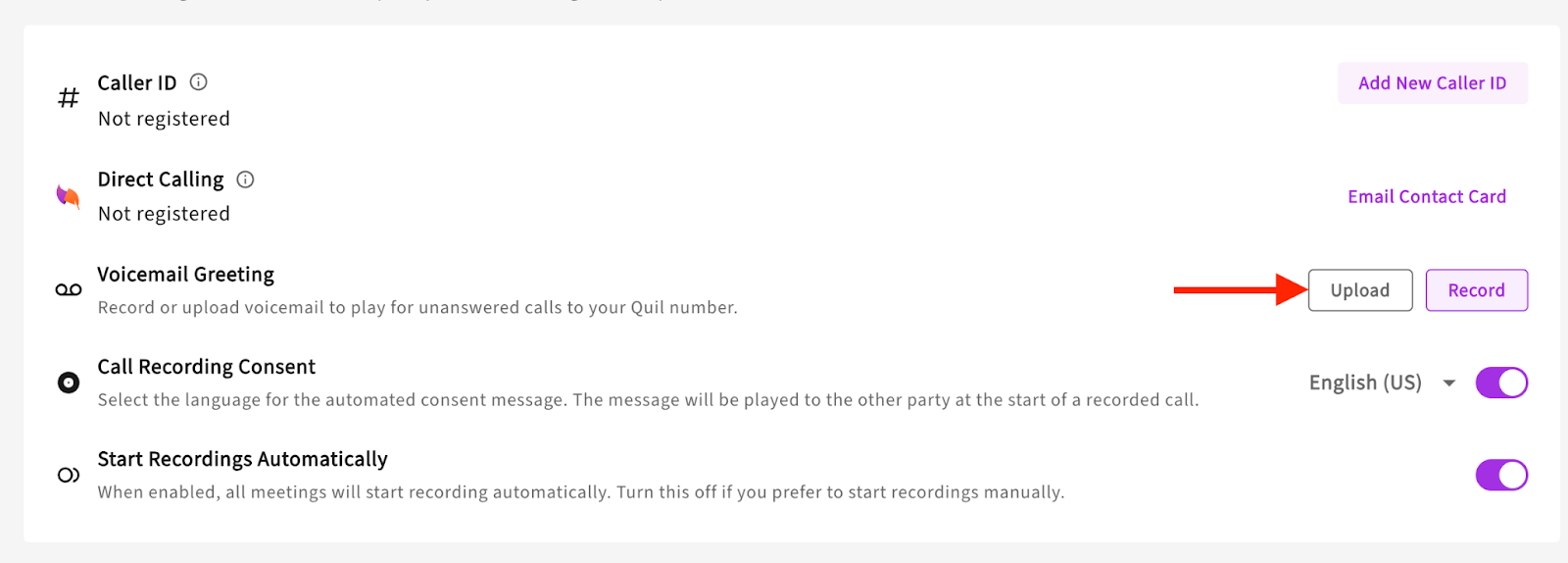
- How to view them: If someone leaves you a voicemail, it will appear directly on your CoRecruit Dashboard as a new meeting, allowing you to listen to the audio or read the transcript and treat it like all other meetings. This means voice mails can be summarized and notes updated to your ATS if you prefer.
Recording Settings: Consent & Automation
CoRecruit provides built-in tools to handle legal compliance and recording preferences. You can manage these under Settings > General > VoIP Phone Settings.
- Call Recording Consent:

Note: This is ON by default. CoRecruit plays an automated recording consent message in the chosen language before a call is recorded.
Manual Control: You can toggle this OFF, but by doing this, you take full responsibility for ensuring you have the required permissions to record in your jurisdiction.
- Start Recordings Automatically:
- If ON, CoRecruit begins recording the moment the call connects (capturing the consent message as well).
- If OFF, calls are not automatically recorded. You will need to explicitly turn recording on once the call has begun.