.png?width=300&height=76&name=Logo_Chromatic(Formerly%20Quil%20LG).png)
CoRecruit's MCP Server gives your favourite AI chat tools direct, secure access to your meeting data, transcripts, participants, summaries, and more without any copy-pasting or manual lookups. Once connected, you can ask the AI application questions about your CoRecruit data the same way you would ask a colleague.
What is an MCP Server?
MCP stands for Model Context Protocol. It is an open standard that allows AI chat applications such as Claude, ChatGPT, Gemini etc to securely connect to external tools and data sources. Think of it as a universal plug that lets the AI application "read" live data from the apps you already use, rather than being limited to only what you type into the chat.
When you connect CoRecruit to an AI application via MCP, the application can:
- Retrieve meeting transcripts, summaries, participants, and action items directly from CoRecruit
- Combine that information with data from other connected tools such as your email, CRM, communication tool or calendar
- Answer complex questions that would otherwise require you to manually look things up across multiple systems
The result is a connected application that works across your entire workflow, not just inside a single app.
Why would I use this?
Recruiters and agency managers spend a significant amount of time synthesising information across meetings, candidates, clients, and communication tools. The CoRecruit MCP Server removes that friction by letting the AI application do the cross-referencing for you.
Instead of switching between CoRecruit, your inbox, and your CRM to piece together context, you can ask the AI application a single question and get a complete, informed answer.
|
Example "Draft a follow-up email to the client based on what was discussed in our call yesterday" — the AI chat tool reads the meeting summary from CoRecruit and your existing email thread, then drafts a contextual, informed response. |
What can I do with it?
Here are some of the most powerful ways to use the CoRecruit MCP Server in combination with the AI application and other connected tools.
Replying to emails with meeting context
Connect CoRecruit alongside your email client (e.g. Gmail, Outlook) in your AI chat application of choice. The application can pull the relevant meeting transcript or summary from CoRecruit and use it to draft or inform your reply — so your emails are always grounded in what was actually said.
Example prompt: "A client just emailed asking for an update on the candidate we discussed last week. Draft a reply using the notes from that meeting."
Team performance and call quality analysis
Managers and team leads can use the MCP Server to pull meeting data across their team and ask analytical questions — great for coaching, quality assurance, and identifying patterns.
Example prompt: "Review last month's client calls and summarise the common objections raised, how the team handled them, and any follow-up items that weren't actioned."
Example prompt: "Compare the tone and outcomes of Sarah's client calls this week versus last week. What changed?"
Candidate briefing and preparation
Before a candidate interview or client call, ask the AI application to pull all previous meeting notes, action items, and topics discussed so you walk in fully briefed without spending time manually reviewing notes.
Example prompt: "Summarise everything we've discussed with the candidate John Smith across all meetings — key themes, any concerns raised, and what we agreed on."
Cross-platform workflows
The real power of MCP is combining data across multiple connected apps. Below are some examples of what becomes possible when CoRecruit is connected alongside other tools in your AI application:
|
Use Case |
What you can ask |
How it works |
|
Post-meeting email |
"Draft a follow-up email based on today's call with [Client]" |
Application reads CoRecruit meeting summary + your email history to draft a contextual reply |
|
Call coaching report |
"Give me a coaching summary of the team's calls this week" |
Application pulls meeting highlights and transcripts across the team and synthesises patterns |
|
Candidate timeline |
"What has been discussed with [Candidate] across all our meetings?" |
Application retrieves all meetings for a person record and produces a chronological summary |
|
Action item tracking |
"What action items are outstanding from yesterday's client calls?" |
Application pulls action items from CoRecruit meetings and surfaces any that are unresolved |
|
CRM update prep |
"Summarise the key outcomes I need to log in our CRM from today's meetings" |
Application reads meeting summaries from CoRecruit and formats them for CRM entry |
Compatible AI applications
The CoRecruit MCP Server works with any AI application that supports the Model Context Protocol. This currently includes:
- Claude (Anthropic) — available on Claude.ai and the Claude desktop app
- ChatGPT (OpenAI) — via the ChatGPT desktop app with MCP support
- Gemini (Google) — via compatible integrations
- Other MCP-compatible clients — any application built on the MCP open standard
|
Note: The connection steps may look slightly different depending on which AI application you use, but the CoRecruit authorisation screen and permissions will be the same across all of them. |
What data can the application access?
The CoRecruit MCP Server provides read-only access to your CoRecruit data. The AI application can never modify, delete, or write anything back to CoRecruit. The following data is available:
|
Data type |
What's included |
|
Meeting metadata |
Title, date, duration, type, and basic details |
|
Transcripts |
Full meeting transcripts |
|
Summaries |
AI-generated meeting summaries |
|
Highlights |
Key moments and notable points from meetings |
|
Action items |
Tasks and follow-ups identified during meetings |
|
Topics |
Main topics and agenda items discussed |
|
Participants |
Who attended each meeting |
|
Person records |
People in your CoRecruit workspace and their meeting history |
|
Follow-up documents |
Documents and notes generated from meetings |
|
Meeting types |
Your configured meeting type categories |
|
Team & account info |
Team members, team structure, and account-level details |
|
Read-only access The CoRecruit MCP Server is entirely read-only. The AI application can retrieve and analyse your data, but it cannot create, edit, or delete anything in CoRecruit. |
How to connect CoRecruit to your AI application
The connection process uses OAuth, the same secure login flow used by apps like Google or Slack when they ask for permission to connect. You will be redirected to CoRecruit to authorise access, then returned to your AI application.
The exact steps will vary slightly depending on which AI application you use. Below is a general guide that applies to most MCP-compatible clients.
Step-by-step: Connecting CoRecruit
|
1 |
Open your AI application's connector or integration settings Look for a section called "Connectors", "Integrations", "Tools", or "MCP Servers" in your AI application's settings. This is where you manage which external tools the application can access. |
|
2 |
Add the CoRecruit MCP Server If CoRecruit is not already listed, add it using the MCP Server URL: https://production-eastus-public.quil.app/v1/mcp |
|
3 |
Initiate the connection Click "Connect" next to CoRecruit. Your AI application will open a new browser window or tab to begin the authorisation flow. |
|
4 |
Authorise access in CoRecruit You will be shown a CoRecruit authorisation screen asking "Claude wants to access your account" (or equivalent for your AI app). Review the permissions and click Allow. This grants read-only access to your CoRecruit data. |
|
5 |
Confirm the connection You will see a "Connected" confirmation screen. You can close this browser tab and return to your AI application. CoRecruit will now appear as a connected tool. |
|
6 |
Review tool permissions (optional) Once connected, you can review and adjust which individual CoRecruit tools the AI application is allowed to use. By default, the application will ask for confirmation before using each tool. You can set tools to "Always allow" if you prefer a more seamless experience. |
Tool permissions
After connecting, your AI application will show a list of CoRecruit tools that are available to the application. These correspond to the types of data listed in the section above. You can control each tool individually:
- Always allow — the application uses this tool automatically without asking each time
- Ask each time — the application will prompt you before reading from CoRecruit (default)
- Never — the tool is disabled and the application cannot access this data type
We recommend starting with the default settings and adjusting based on your preferences as you use the integration.
Connecting via the Claude Desktop App
These steps apply to the Claude desktop app. You will need to be signed into Claude before you begin.
Team or Enterprise Plan (Organization-Managed): If your Claude account is part of a Team or Enterprise workspace, individual members cannot add custom connectors on their own.
An Owner or Primary Owner must first add and enable the connector globally via Organization Settings > Connectors > Add > Custom > Web. Once they have enabled it, it will appear in your personal settings where you can click "Connect" to authorize it.
Step 1 — Open Connectors in Claude settings
- Open the Claude desktop app.
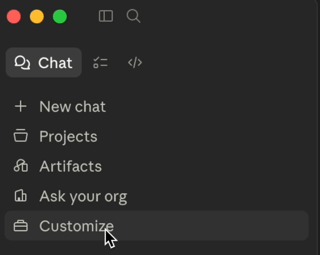
- In the left-hand menu, click Customize and select Connectors
- You will see a list of available connectors. Look for CoRecruit under the Not connected section. If you see this, then it means your team has already connected to CoRecruit and made it available to you. Go to Step #
Step 2 — Add a Custom Connector
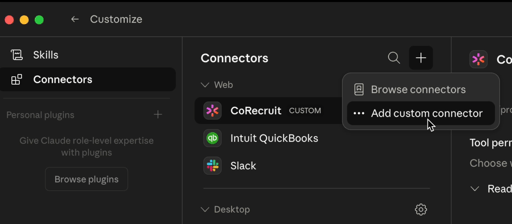
- Click the "+" icon next to "Connectors" to add a Custom Connector
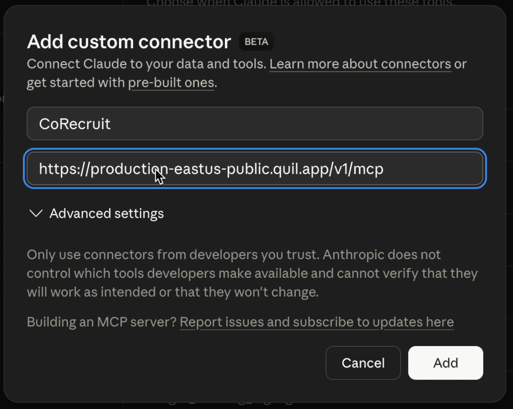
- Give the custom connector a name - CoRecruit - and use the MCP URL - https://production-eastus-public.quil.app/v1/mcp and click Add
Step 3 — Authorize access in CoRecruit
- Your will be prompted to open your browser and go to the CoRecruit authorization screen, which will say "Claude wants to access your account".
- If you are not logged in, please login to your CoRecruit account, and check that the correct CoRecruit account is shown, then click Allow.
- You will see a "Connected" confirmation screen in your browser. You can close this tab and return to Claude.
Step 4 — Confirm and review tool permissions
- Back in Claude, CoRecruit will now appear under your connected Web connectors.
- Click on CoRecruit to see the full list of available tools — there are 21 read-only tools covering meetings, transcripts, participants, action items, and more.
- Each tool is set to Ask by default, meaning Claude will confirm with you before reading from CoRecruit. You can change individual tools to Always allow if you prefer a more seamless experience.
Tip: Once connected, start a new chat in Claude and ask a question about your meetings — for example, "Summarize my last three client calls." Claude will indicate when it is reading from CoRecruit and show you what it found.
Connecting via ChatGPT
To integratate CoRecruit to ChatGPT's MCP, developer mode is required to be enabled in your ChatGPT settings. This is a requirement from OpenAI for any custom MCP server that has not yet been verified through their marketplace. Developer mode does not change how CoRecruit works or what data it can access.
Note: OpenAI displays an "Elevated Risk" warning when enabling Developer mode. This is a general warning about unverified MCP servers — not specific to CoRecruit. The CoRecruit MCP Server is entirely read-only and cannot modify or delete any data.
Step 1 — Enable Developer mode
- Open ChatGPT, click on your profile image on the bottom left of the screen and go to Settings.
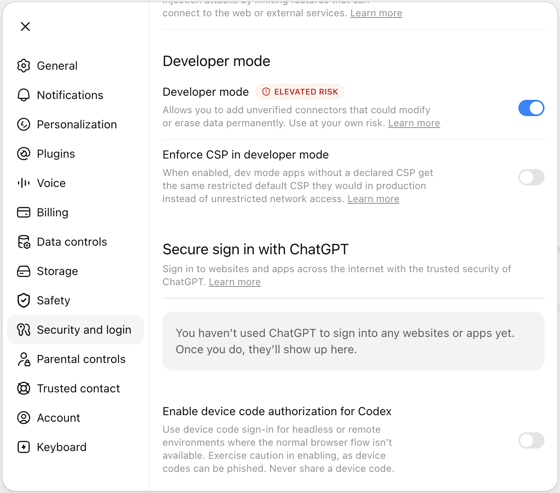
- Select Security and login from the left-hand menu.
- Find Developer mode and toggle it on. ChatGPT will warn this is an elevated risk setting — this is expected. Click to confirm. If Developer Mode is ON already, proceed to the next step
Step 2 — Add the CoRecruit plugin
- On the Settings screen, click Plugins from the left-hand menu.
- Scroll to the bottom of the plugins list and click on "Browse Plugins"
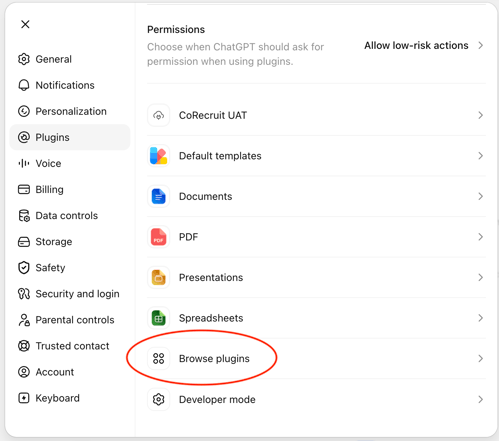
- On the Plugins screen, click the "+" icon on the top right to add a new plugin

- In the New Plugin form, fill in the following:
- Name: CoRecruit
- Description: Access your CoRecruit data in ChatGPT (optional)
- MCP Server URL: https://production-eastus-public.quil.app/v1/mcp
- Authentication: OAuth
-
Tick the acknowledgement checkbox — "I understand and want to continue" — to confirm you are adding a custom MCP server.
- Click Create.
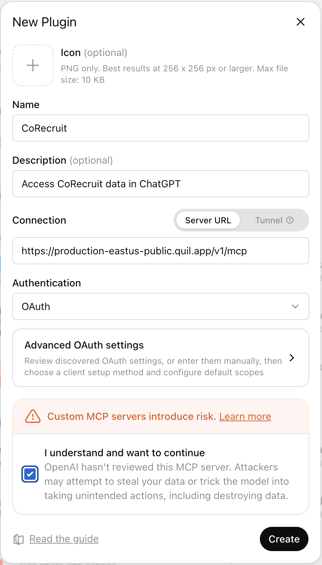
Step 3 — Authorize access in CoRecruit
- After clicking Create, ChatGPT will open your browser and redirect you to CoRecruit's authorization screen.
- Review the permissions — these are read-only — and click Allow.
- You will be returned to ChatGPT with the connection confirmed. CoRecruit will now appear under your enabled apps.
Tip: Once connected, you can start a new chat in ChatGPT and ask questions about your CoRecruit meetings directly. ChatGPT will confirm before reading from CoRecruit the first time.
Frequently asked questions
Is my data safe?
Yes. The CoRecruit MCP Server uses OAuth for authentication, the same industry-standard protocol used by major platforms. Your AI chat application accesses your data on your behalf using a secure, revocable token. You can disconnect CoRecruit from your AI chat application at any time, which immediately revokes access.
However, once the data has been pushed from CoRecruit into your AI chat application, that is then governed by the AI chat applications data policies.
Can the AI application make changes to CoRecruit?
Not currently. The MCP Server is entirely read-only. The application can read and analyse your CoRecruit data, but it cannot create meetings, edit records, delete anything, or push notes to your ATS. CoRecruit remains the source of truth.
Can I share this connection with my whole team?
Each team member connects their own CoRecruit account individually. The connection is personal to your login, the application will only see data that your CoRecruit account has access to.
What if I want to disconnect?
Go to the Connectors section of your AI application's settings, find CoRecruit, and click Disconnect. You can reconnect at any time by going through the authorisation flow again.
Why does the application ask for confirmation before reading from CoRecruit?
This is the default behaviour for MCP tool permissions. It means the application is transparent about when it is accessing external data. You can change this to "Always allow" in the tool permissions settings if you prefer the application to retrieve CoRecruit data automatically.
I'm getting an error during the connection. What should I do?
Make sure you are logged into CoRecruit in your browser before starting the connection flow. If the issue persists, try clearing your browser cache or using a different browser. Contact CoRecruit support if you continue to experience problems.
Need help? Contact CoRecruit support or visit our Help Centre.