.png?width=300&height=76&name=Logo_Chromatic(Formerly%20Quil%20LG).png)
How it works
Once you connect your Slack account to CoRecruit, the CoRecruit Slack app sends you a direct message every time one of your meetings completes. That message includes:
- A View Notes button that opens the AI-generated notes from that meeting
- A View Meeting button that opens the full meeting detail page in CoRecruit
The message is sent only to you and it arrives as a direct message from the CoRecruit app, not in a channel. No one else on your team can see it.
Connecting your Slack account
Note: Each team member connects their own Slack account individually. An admin connecting Slack does not connect it for the whole team — each person must do this themselves from their own Settings.
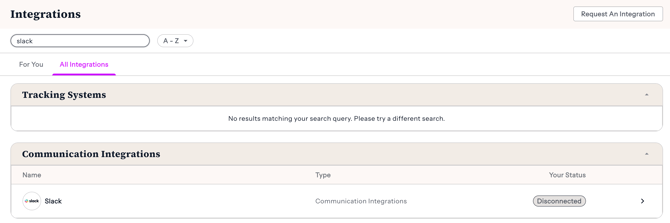
- Go to Settings and select Integrations from the left sidebar.
- In the All Integrations list, find Slack in the list under Communication Integrations. Its status will show as Disconnected.
- Click the row to open the Slack integration page.
- Click Connect in the top right corner.
- A Slack authorisation window will open. Select the workspace you want to connect and review the permissions.
- Click Allow to complete the connection.
CoRecruit will send you a confirmation message in Slack to let you know everything is set up.
What to expect after connecting
Once connected, CoRecruit will send you a direct message in Slack for every meeting that completes on your account. The message arrives shortly after the meeting ends and CoRecruit has finished processing your notes.
If you have a high volume of meetings, each one generates a separate Slack message.
Disconnecting Slack
To disconnect, go to Settings → Integrations → Slack and follow the disconnect option on that page. Once disconnected, CoRecruit will stop sending you meeting notifications via Slack. Your past messages in Slack are not affected.
Frequently asked questions
Do all team members get Slack notifications, or just me?
Slack notifications are personal. Each team member receives messages only for their own completed meetings. Your colleagues won't see your notifications, and you won't see theirs. Each person on your team needs to connect their own Slack account to receive these messages.
Which Slack workspace does CoRecruit connect to?
CoRecruit connects to whichever workspace you select during the OAuth authorisation flow. If your team uses multiple workspaces, make sure to select the right one when connecting.
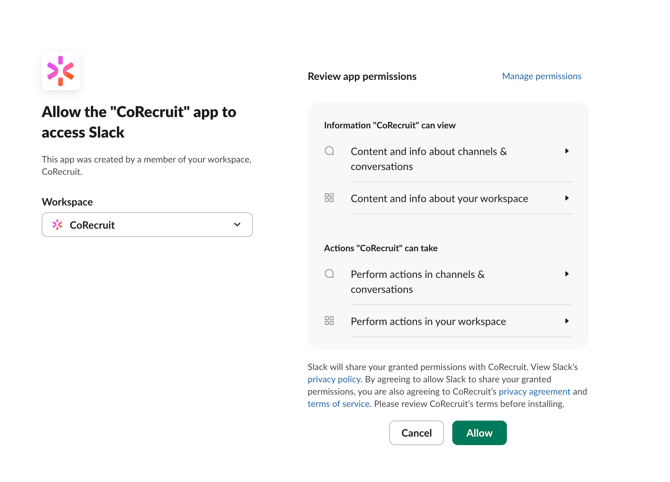
What does CoRecruit need permission to do in Slack?
CoRecruit requests permission to view basic information about your workspace and channels, and to send messages on your behalf. The integration only uses these permissions to send you direct meeting notifications. CoRecruit does not read your Slack messages or post in any channels.
I connected Slack but I'm not receiving notifications. What should I check?
First, check that your Slack account received the confirmation message from the CoRecruit app. If it did, your connection is working and future meeting notifications will come through. If you've completed a meeting and still haven't received a message, try disconnecting and reconnecting your Slack account from Settings. If the issue continues, contact support.
Can CoRecruit post meeting notifications to a Slack channel instead of a DM?
Not currently. Notifications are sent as direct messages to the connected user only. Channel-based notifications are not supported at this time.