.png?width=300&height=76&name=Logo_Chromatic(Formerly%20Quil%20LG).png)
Before You Begin
For local recordings to work properly, you must set up voice biometrics in advance under your profile settings. Without this, speaker identification may not function correctly.
Additionally, any locally recorded meeting must have a record name manually assigned. You can do this as soon as you start the meeting.
Recording from Desktop
- Access Your Account
- Log into your CoRecruit account.
- Click the purple "Start a Meeting" button in the top right corner.

- Name and Configure the Meeting
- Enter a meeting name and select a meeting type.
- Connect Your Microphone
- Click "Connect Microphone" in the bottom left corner.
- CoRecruit will begin using your microphone to transcribe the meeting in real time.
- Click "Connect Microphone" in the bottom left corner.
Tip: The local microphone works for any conversation that can be heard locally — including in-person meetings and phone calls on speaker.
Recording from Mobile
- Log into your CoRecruit account on the mobile app.
- Start a new meeting or join one that is already in progress.
- In the top right corner, switch the mode from Voice Call to Local Recording.
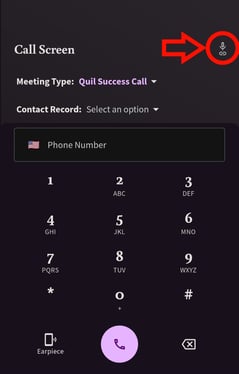
- CoRecruit will continue recording in the background while you conduct the meeting.
If you require additional help, reach out to your main point of contact at CoRecruit or email support at support@corecruit.ai.