.png?width=300&height=76&name=Logo_Chromatic(Formerly%20Quil%20LG).png)
1. Log into CoRecruit
Start by logging into your CoRecruit account. Once logged in, you'll be directed to the overview page.
2. Access General Settings
Click the gear icon in the main navigation menu, and ensure you are on the General Settings screen.
3. Configure Bot Settings
In the General Settings page, scroll down to the Bot Settings section. Here, you'll find two key options:

-
Bots Auto Join External Calls: When enabled, the bot will automatically join any external calls that are on your schedule.
-
Bots Auto Join Internal Calls: When enabled, the bot will automatically join internal calls as determined by your schedule.
Internal vs. External Calls: External calls involve participants with different email domains; internal calls involve participants with the same domain as yours.
Note: If your calendar has already been integrated before this step, please configure your settings first, then disconnect the integration and reconnect it again.
4. Remove Auto Join from a Single Meeting
If you wish to remove Auto Join for a specific upcoming meeting, you can do so by clicking on the meeting and deselecting Bot Auto Joins.
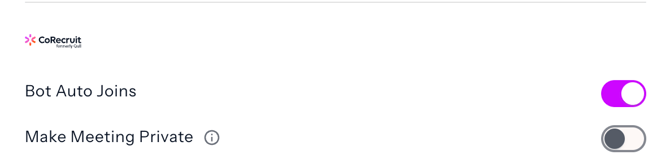
If you are only adjusting auto-join for a single meeting using this method, you do not need to complete step 6.
5. Verify Upcoming Meetings
To check which meetings the bot will join, return to the overview page. Under Upcoming Meetings, you will see a list of meetings CoRecruit has identified and will automatically join based on your settings. If an upcoming meeting has a purple Auto Join tag, CoRecruit's note taker will automatically join that call.
6. Connect / Re-connect Your Calendar
To ensure the bot joins your meetings, you will need to reconnect your calendar with CoRecruit. Click the gear icon and select Integrations. From there, you can find your connected Google or Microsoft Outlook calendar.
Click the connected calendar, and on the calendar details page, Disconnect and reconnect your calendar. Once reconnected, the bot will be automatically updated with your meetings and join them according to your configured preferences.

Note on RBAC and Team Settings
Your ability to change Bot Settings may be controlled by your organization's Role-Based Access Control (RBAC) permissions and Team Settings configured by your admin.
- Admin-level controls: Admins can set organization-wide or team-wide defaults for bot auto-join behaviour in the Admin Settings & Team Defaults page. If a default has been set at the team or organization level, it will apply to all members of that team unless individual overrides are permitted.
- RBAC restrictions: Depending on the role assigned to your account, you may or may not have the ability to modify your own Bot Settings. If the Bot Settings section appears grayed out or is not visible in your General Settings, your admin has restricted changes at the role level. Contact your admin to request a change or to have your permissions updated.
- Team-level overrides: If your team has a default auto-join setting enforced by an admin, your individual settings may be locked to match that default. Individual preferences will only take effect if your admin has enabled personal overrides for your team.
If you require additional help, reach out to your main point of contact at CoRecruit or email our support team at support@corecruit.com.