.png?width=300&height=76&name=Logo_Chromatic(Formerly%20Quil%20LG).png)
1. Accessing Phone Setup
- Begin by logging into your CoRecruit account.
2. Navigate to General Settings
- On the homepage, click on the gear icon to access the general settings page.
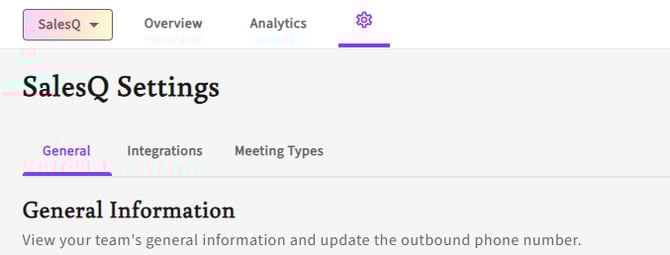
3. Adding a Caller ID
- Click on 'Add New Caller ID'.
- Type in the phone number you will use for calling in CoRecruit.
- Click 'Verify' to receive a call on your phone.
Careful: Do not select the option to update the phone number for the entire team, unless all team members will use this number.
- Wait until your phone rings
- When your phone rings, enter the six-digit validation code provided by
the system. - Wait for confirmation from the phone call
Note: For any numbers added shared by the team, you will not need to go through confirmation again.
4. Using Direct Calling
- After verification, a direct calling number will be displayed. This is the number you'll use to call CoRecruit
- Use the NA number for North America, the EU number for other regions in Europe, and OC for the Australian regions.
5. Adding the CoRecruit Contact to Your Phone
- Click 'Email Contact Card' to receive the direct calling number via email. From your phone, access the email that was sent to you, using the contact card, add the CoRecruit calling number to your contacts.
- Alternatively, manually enter the CoRecruit number and the call extension into your phone
contacts. Use a comma instead of 'ext' (e.g. 1234567890,123456)
Note: To add a comma in the CoRecruit direct calling number, please verify how to do so depending on your phone manufacturer.
If you require additional help, reach out to your main point of contact at CoRecruit or email support at support@corecruit.com.