.png?width=300&height=76&name=Logo_Chromatic(Formerly%20Quil%20LG).png)
1. Accessing the Extension:
- Open the 'Getting Started with CoRecruit' email and use the provided link to access the extension.
- If you cannot find the email, you can search for the 'CoRecruit Chrome Extension' on Google.
- You can also follow the link HERE
2. Installing the Extension:
- Click 'Add to Chrome' on the extension page, then confirm by clicking 'Add Extension'
- Once added, a message will appear stating that CoRecruit has been added to Chrome.
3. Managing the Extension:
- Find the CoRecruit extension, and click 'Pin' to keep it easily accessible.
- For Chrome: Click the puzzle piece icon in the top right corner. From the extension pop out bot, click the thumbtack icon to pin the extension
- For Edge: Click the three dots in the top right corner, go to 'Extensions', and manage your extensions from there.
4. Extension Permessions
- Click the extension from your toolbar, and login to CoRecruit from the extension.
- After logging in click on the cog icon in the top left corner.
- Under Extension Settings, left click the option 'Request Audio Permissions'
- On the new tab that has opened, click on 'Initialize'.
- In the browser pop up requesting to access the microphone click on 'Allow'.
5. Using the Extension
Now with the extension setup, you can now make calls using the CoRecruit extension from your browser.
6. Enable Auto Dialling
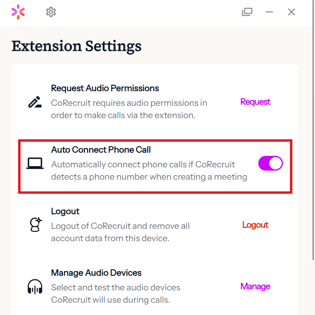
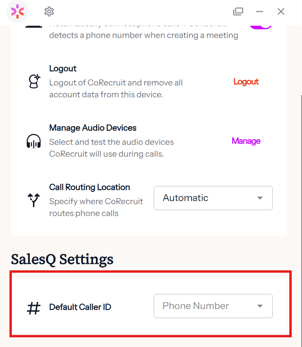
In order to save time when starting calls from the extension, you can enable auto dialling. When enabled, creating a call will immediately begin dialling the recipient. To enable auto dialling, you must first navigate to the extension setting by clicking on the cog icon in the top left corner.
Ensure the "Auto Connect Phone Call" option is toggled "On" and ensure you have a "Default Caller ID" selected.
Both "Auto Connect Phone Call" and "Default Caller ID" must be selected for auto dialling to be enabled.
If you require additional help, reach out to your main point of contact at CoRecruit or email support at support@corecruit.com.