.png?width=300&height=76&name=Logo_Chromatic(Formerly%20Quil%20LG).png)
Where the notes go
After notes are submitted, they will appear in the Activities section on the Person record you selected.
CoRecruit's Cluen integration only allows linking records with People.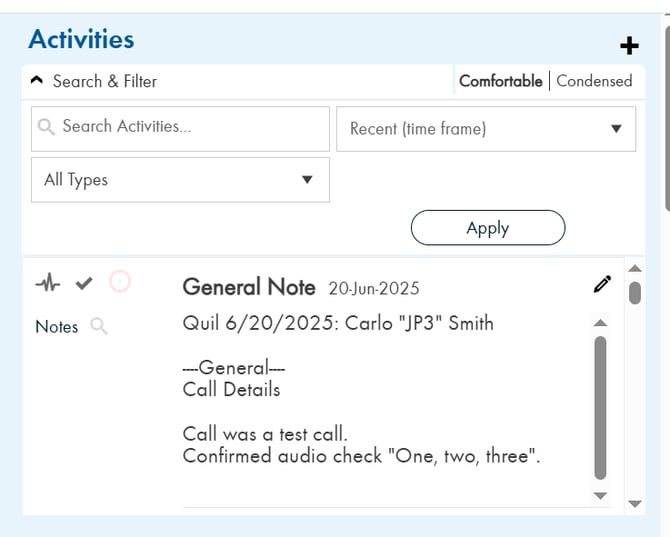
How to Setup
Your Cluen / Encore system can integrate directly with the CoRecruit AI Notetaker. There are special components within the Encore application to maximize the value of your CoRecruit-generated data and build it into your team's workflow. Contact your Cluen rep for the latest updates. Please follow the steps below to get your system configured and activate the integration. Once configured, AI summaries of your recorded calls in CoRecruit can be brought into Encore as Activities and associated with Candidates and Searches.
Prerequisites:
1. You’ll need an active CoRecruit account to use the integration.
2. Your Encore database must have the CoRecruit integration activated. To do so, please reach out to Support@Cluen.com and request that your Encore has the integration activated.
3. A CoRecruit Activity must be added into your Encore system via the Activities menu in Settings > Lingo by your organization’s Encore Admin.
4. The CoRecruit settings must be configured within Encore Max under Settings > Admin > CoRecruit (see instructions below).
Once your Encore Admin has created the CoRecruit Activity (Prerequisite 3) you can configure the CoRecruit options in Settings (white gear icon in the top right-hand corner) > Admin section > CoRecruit.
(1) Select the CoRecruit Activity (see Prerequisite 3) from the drop-down in the ‘Activity Type’ field.
(2) Select the People Label that you’d like to use when associating CoRecruit Activities with Person records.
(3) Select the Search Label that you’d like to use when Auto-filling the Search/BD association
**Please note that you’ll have to check the Auto-fill Search/BD box below to configure this drop-down
(4) Check this box if you’d like a Search/BD to be automatically associated with the CoRecruit Activities. There must be only one search or BD active against the associated Person Record in order for this to link properly.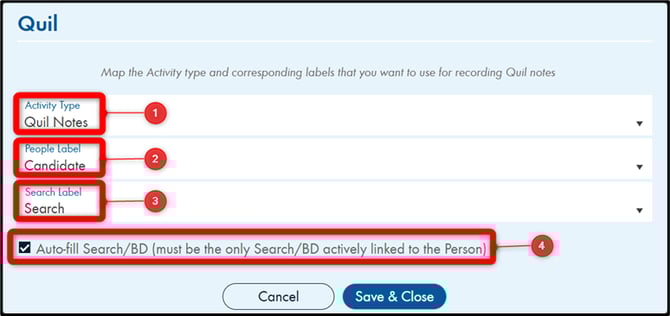
Once all of the above prerequisites and configuration above are completed, you can follow the steps below to Activate the integration.
Activation
Activation is performed from the CoRecruit dashboard within Encore Max.
To navigate to the CoRecruit Dashboard, click the Dashboard button in the top left-hand corner, then choose ‘CoRecruit AI Notetaker’.
-png-1-2.png?width=670&height=262&name=unnamed%20(1)-png-1-2.png)
Once you’ve navigated to the CoRecruit AI Notetaker Dashboard, confirm your work email is showing to the left of the ‘Activate’ button, then click ‘Activate’. You should see the message below:
-png-2.png?width=506&height=223&name=unnamed%20(2)-png-2.png)
Clicking OK on the above menu will open the CoRecruit Web App in a new tab. Click the ‘Sign in’ button at the top right-hand corner of the screen on the CoRecruit homepage.
Once signed into CoRecruit, click the Settings Gear in the top left-hand corner (see image below):
-png-2.png?width=404&height=126&name=unnamed%20(3)-png-2.png)
Then choose the ‘Integrations’ tab.
-png-2.png?width=670&height=123&name=unnamed%20(4)-png-2.png)
Find Cluen from the systems listed on the integrations page and click Connect. Input the email address associated with your Encore account in the field that appears and click Connect. You should receive a message that the integration has successfully connected.
-png-2.png?width=556&height=663&name=unnamed%20(5)-png-2.png)
Once the integration is connected successfully you can associate your calls and meetings in CoRecruit with Person Records in Encore using the ‘Select Connected Record’ field on the left side of your CoRecruit meetings in the Summary section.
-png-2.png?width=417&height=292&name=unnamed%20(6)-png-2.png)
-png-2.png?width=670&height=540&name=unnamed%20(7)-png-2.png)
-png-2.png?width=670&height=252&name=unnamed%20(8)-png-2.png)
You can also navigate back to the CoRecruit Dashboard to see the Activities that have been brought in through the CoRecruit integration. You can use the drop-down to filter between ‘All Active’ (all your organization’s CoRecruit Activities) and ‘My Active’ (CoRecruit Activities associated with your Encore user account). You can also use the pencil to view/edit the CoRecruit Activities directly from the Dashboard.
For more details on where to set up your integration, please read this article on managing your integrations
Where the notes go
After notes are submitted, they will appear in the Activities section on the Person record you selected.
CoRecruit's Cluen integration only allows linking records with People.
Activity Types Supported
❌ CoRecruit's activity types are not supported for Cluen.
Database Fields
CoRecruit can update select Cluen person fields automatically or manually.
Supported standard fields:
-
Expected Salary
-
Expected Bonus Low
-
Expected Bonus High
- Nickname.
Custom Fields
❌ Custom fields are not supported in CoRecruit’s Cluen integration.
Follow-Up Material
❌ Follow-up material (documents or attachments) cannot be uploaded to Cluen via CoRecruit.
Supported Features
| Feature | Supported |
|---|---|
| Create notes | ✅ Yes |
| Update notes | ✅ Yes |
| Activity types | ⚠️ Partial — Activity type is set in Encore's CoRecruit settings, not per meeting type |
| Standard field updates | ✅ Yes |
| Custom field updates | ❌ No |
| Document uploads | ❌ No |
| Chrome extension | ✅ Yes |
Need Help?
For additional help with setting up or managing the Cluen integration, please contact your CoRecruit representative or reach out to support@CoRecruit.com.