.png?width=300&height=76&name=Logo_Chromatic(Formerly%20Quil%20LG).png)
Purchasing VoIP Access
Before you can claim your CoRecruit VoIP numbers, you must first purchase VoIP numbers by talking to the CoRecruit sales team. You can optionally purchase unlimited calling packages based on your expected VoIP usage. Talk to your account manager or sales rep for specific details and estimated savings by purchasing calling packages.
- Outside the App: Numbers and calling packages are purchased through your Account Manager or Sales Rep.
- Activation: Once purchased, you will be able to claim specific phone numbers you want to get from your CoRecruit dashboard.
Claiming and Assigning Phone Numbers
Team Owners and Admins can claim purchased phone numbers directly by going to Settings > Assign Phone Numbers. Once a number is “claimed”, it can be “assigned” to a specific team member
You can find a number in two ways:
1. Choose Numbers by Area Code
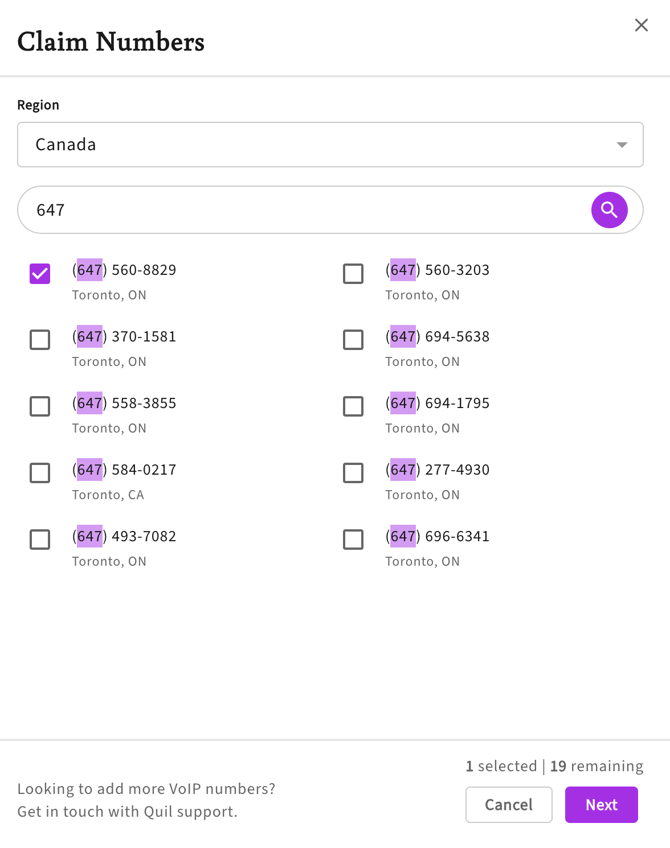
Use the search box to search for specific phone numbers. Enter 3 or more digits (e.g., "647" for Toronto) to see a list of available numbers. This will look for phone numbers that have your search term as a prefix.
Optionally, you can add an * in front of the numbers you want to search for (e.g., *647), to look for that pattern anywhere in the phone number.
2. Claim Numbers by Region
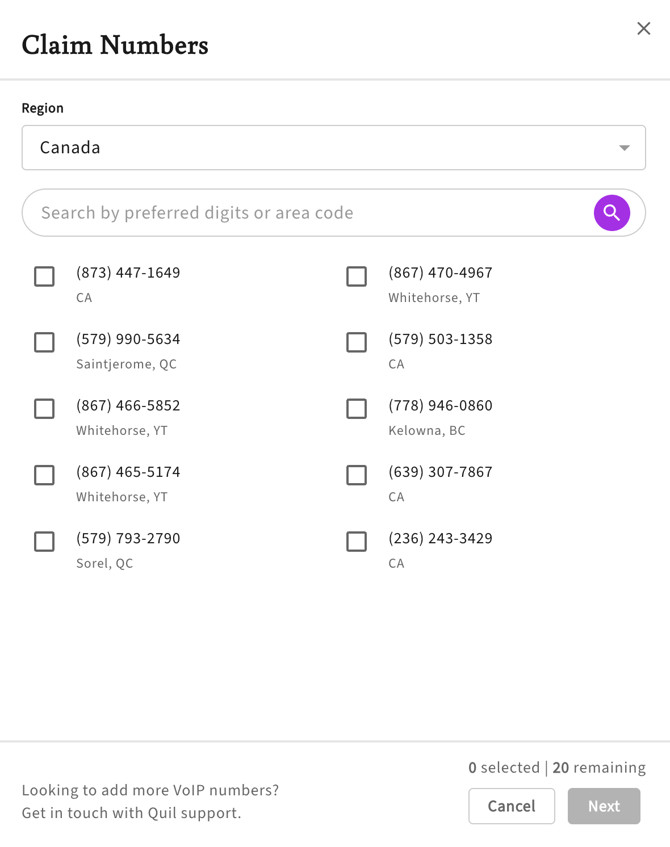
Use this if you need a number for a specific country or state but don’t have a specific area code in mind. Simply select the country (e.g., United Kingdom) and CoRecruit will provide a list of numbers from that region you can pick from.
Assigning and Releasing Numbers
Once claimed, your phone numbers will appear “unassigned” on your dashboard.

- Assigning: To assign a phone number, simply select the team member you want to assign it to from the drop down. You can assign multiple phone numbers to a single team member.

- Revoking/Unassigning: If a team member leaves or no longer needs a specific number, you can remove it from their account.
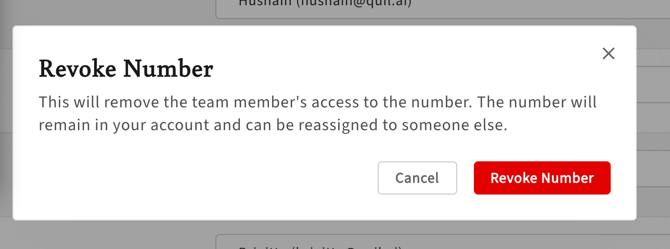
Once you hover over the team member’s name in the drop down field, you can see the “X” appear, which you can click to revoke the number. This moves the number back into the "Unassigned" pool and it can now be assigned to a different team member.
- Releasing: To permanently remove a number from the account, you must first Unassign it from the user, then click the three-dot menu corresponding to the phone number you want to release and select Permanently Release Number.
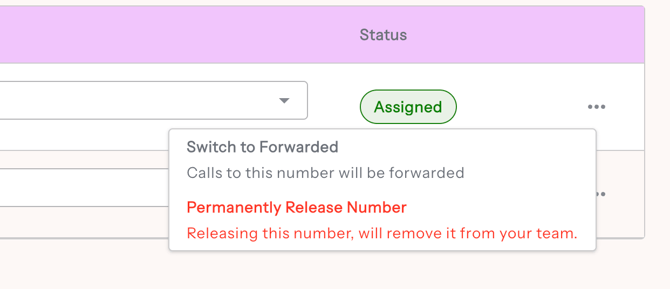 Note: Releasing a number is permanent. CoRecruit does not offer prorated refunds for released numbers.
Looking for forwarded numbers for inbound call support?
Setting a CoRecruit phone number as "forwarded" allows users to forward their person phone numbers to CoRecruit. This enables inbound calling support without the needing a phone number for each team member.
For forwarded inbound call support both your device and carrier must support this functionality.
How to enable call forwarding on iOS
Can I port in an existing number?
CoRecruit supports phone number porting; however, eligibility depends on your current carrier and region. To see if your existing phone number can be ported to CoRecruit, please contact your Account Manager for eligibility and other requirements.
Setting Up Your Identity & Compliance
Before using CoRecruit VoIP, you must verify your business identity. Completing these steps ensures your numbers are legally compliant and reduces the risk of your calls being flagged as spam.
Manage these registrations in Settings > General > Assign Phone Numbers
- Submit a Regulatory Bundle: Most countries (excluding the US and Canada) require business documentation before they will authorize you to use a local number. Click the “Add a Regulatory Bundle” button to upload your documents.
Note: Approval for regulatory bundles typically takes 48–72 hours.
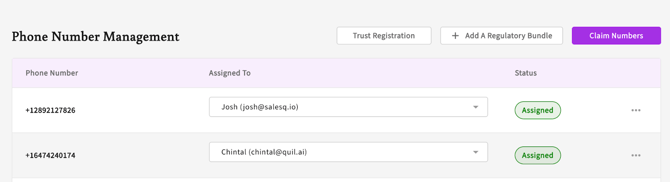
- Complete Trust Registration: Click the "Register for Trust" button to register your business with mobile carrier directories. This helps your business name display more reliably on Caller ID and reduces the risk of your numbers appearing as "Spam Risk."
Note: Approval for trust registration typically takes 48–72 hours.