.png?width=300&height=76&name=Logo_Chromatic(Formerly%20Quil%20LG).png)
Two-factor authentication (2FA) adds a second layer of security to your CoRecruit account. Once it's turned on, signing in requires both your password and a code from an authenticator app on your phone, so your account stays protected even if your password is ever exposed.
2FA is set up individually. Each person on your team can choose to enable it for their own account.
How it works
CoRecruit's two-factor authentication uses time-based one-time passcodes (TOTP). This is the same standard used by most authenticator apps, including Google Authenticator, Microsoft Authenticator, and 1Password. Once you've connected an authenticator app to your account, it generates a new 6-digit code every 30 seconds. You'll enter this code each time you sign in, alongside your usual email and password.
You can connect one authenticator app at a time. If you want to switch to a different app or a new phone, you'll need to disable 2FA and set it up again with the new device.
Turning on Two-Factor Authentication
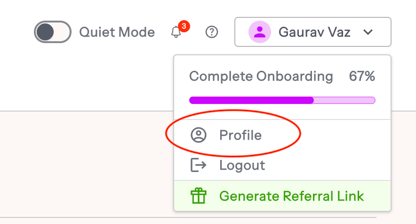
- Click your name in the top-right corner and select Profile.
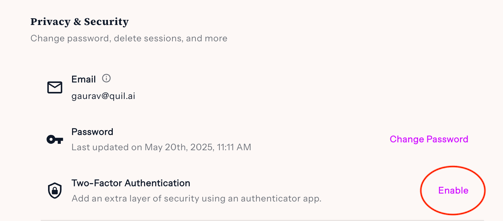
- Under Privacy & Security, find Two-Factor Authentication and click Enable.
- A window opens showing a QR code. Open your authenticator app and scan the code. If your app can't scan codes, copy the code under Can't scan? Enter this key manually and paste the key shown instead.
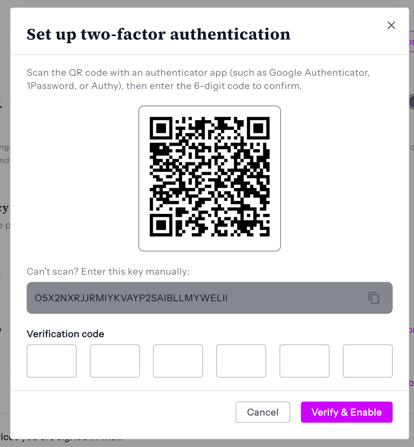
- Enter the 6-digit code your authenticator app generates into the Verification code field, then click Verify & Enable.
Once this is confirmed, Two-Factor Authentication shows as Enabled under Privacy & Security, and you'll be asked for a code every time you sign in from now on.
Tip: Keep your phone or authenticator app accessible before you start — you'll need it to complete setup.
Signing in with Two-Factor Authentication
After 2FA is turned on, signing in takes one extra step:
- Enter your email and password as usual.
- When prompted, open your authenticator app and enter the current 6-digit code.
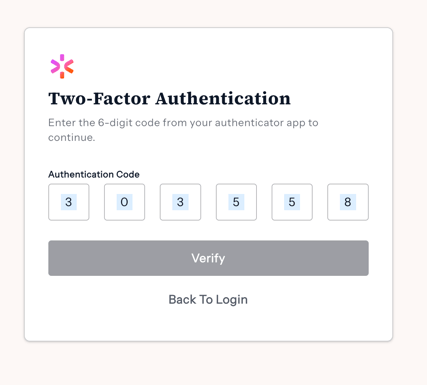
- Click Verify to finish signing in.
Each code is valid for 30 seconds, so make sure you're reading the current code from your app before entering it. Every new sign-in requires a fresh code, CoRecruit does not remember previous devices or sessions.
Turning off Two-Factor Authentication
- Go to Profile > Privacy & Security.
- Next to Two-Factor Authentication, click Disable.
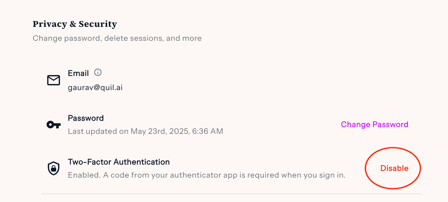
- Enter the current code from your authenticator app and click Disable.
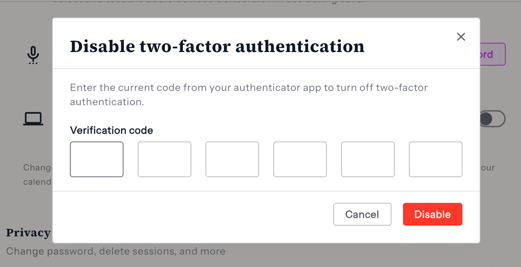
Once disabled, signing in only requires your email and password again.
Frequently asked questions
What happens if I lose access to my authenticator app?
If you lose your phone or can no longer generate codes, you won't be able to turn off 2FA yourself. Please contact CoRecruit support and they'll help you regain access to your account.
Can my admin turn this on for my account?
No. Two-factor authentication is set up individually by each person for their own login — your admin can't enable or disable it on your behalf.
Which authenticator apps can I use?
Any app that generates TOTP codes works, including Google Authenticator, Microsoft Authenticator, and 1Password.
Do I need to enter a code every time I sign in?
Yes. CoRecruit asks for a new code on every sign-in — it doesn't remember your device or skip the check for future logins. However, this is only applicable when you log out of CoRecruit and are trying to sign-in again.
Can I set up 2FA on more than one device?
No, only one authenticator app can be connected at a time. If you want to move to a new phone or app, disable 2FA first, then set it up again on the new device.