.png?width=300&height=76&name=Logo_Chromatic(Formerly%20Quil%20LG).png)
The Problem It Solves
When you start an ad hoc meeting on CoRecruit, for example, by clicking "Start Meeting" on your dashboard, a default title is assigned automatically. These titles follow a format like:
|
CoRecruit Meeting: Mar 16th 12:04 pm |
While this gets the meeting recorded, a list of identically formatted titles makes it hard to find a specific conversation later. Over time, this creates clutter and slows down your workflow.
How It Works
After your meeting ends and the transcript is processed, CoRecruit reads the content of the conversation and generates a descriptive title that reflects what was discussed automatically, with no action required from you.
For example, a default-titled meeting might be renamed to something like:
|
Technical Interview: Senior Frontend Engineer — React & TypeScript |
This makes it much easier to find, reference, and share meeting recordings from your dashboard.
Controlling the Behaviour
You can choose how CoRecruit handles meeting titles through the Meeting Title Behaviour setting in My Settings. There are three options:
|
AI-generated titles CoRecruit uses AI to rename all meetings that were assigned a default title, based on the content of the transcript. |
|
Prefer contact names Incoming and outgoing VoIP calls are titled with the contact name from your ATS, if a match can be found. All other default-titled meetings are renamed by AI as normal. |
|
Don't rename meetings No automatic renaming occurs. All meetings keep whatever title was assigned at the time of creation. |
|
In all cases: CoRecruit only ever renames meetings that were automatically titled by the system. If you gave a meeting a title yourself in your calendar, during the meeting, or by editing it afterwards, it will never be overwritten. |
When a Meeting Will Be Renamed
Depending on your chosen setting, CoRecruit will rename a meeting when all of the following are true:
- The meeting was assigned a default title by CoRecruit
- The meeting has a transcript with enough content to generate a meaningful title
Your setting is AI-generated titles, or your setting is Prefer contact names and the meeting is not a resolved VoIP call.
When a Meeting Will NOT Be Renamed
Your meeting will never be renamed if:
- You gave the meeting a title in your calendar before it started
- You manually edited the meeting title at any point — before, during, or after the meeting
- Your setting is Prefer contact names and the call has been matched to a contact in your ATS. In this case, the contact name is kept as the title.
- Your setting is Don't rename meetings
Additionally, a meeting will not be renamed if there is not enough transcript content to generate a useful title. This includes:
- Meetings where no one spoke (e.g., a bot joined but no other participants entered the call)
- Very short meetings where the transcript does not contain enough information
Default State
Smart Meeting Titles is enabled by default for all CoRecruit accounts, set to AI-generated titles. You do not need to configure anything, it works automatically from the moment it is available on your account.
Changing the Setting
You can update your preference at any time:
- Go to Settings using the gear icon in the navigation
- Select My Settings
- Open the Meeting Settings section
- Use the Meeting Title Behaviour dropdown to select your preferred option
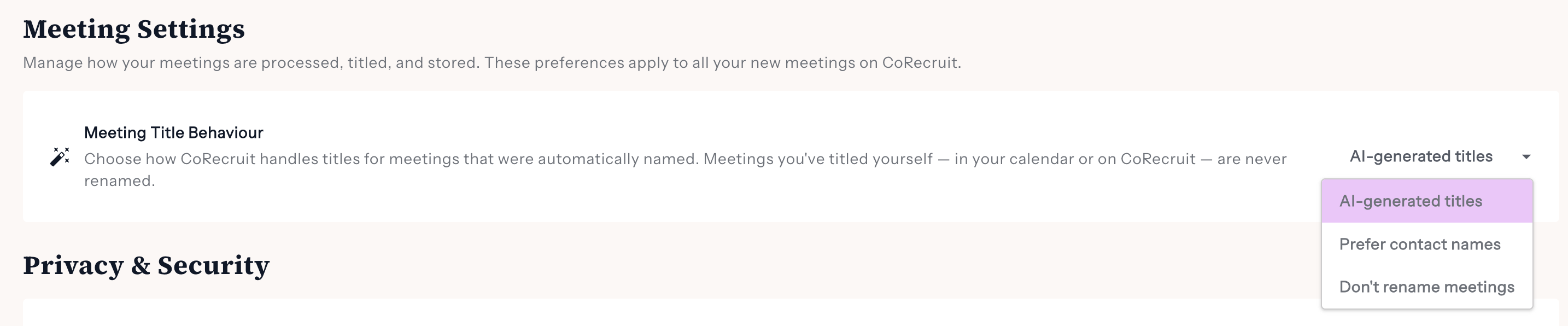
This setting applies to your account only and affects all new meetings going forward. Meetings that have already been renamed will not be changed.
Frequently Asked Questions
Will this rename meetings I have already titled myself?
No. CoRecruit will never overwrite a title you have set, regardless of which setting you choose. This includes titles set in your calendar, edited in the app, or assigned before the meeting started.
What does “Prefer contact names” do exactly?
When this option is selected, CoRecruit checks whether an incoming or outgoing VoIP call can be matched to a contact in your connected ATS. If a match is found, the contact name becomes the meeting title and is not overwritten. If no match is found, or the meeting is not a VoIP call, AI renaming applies as normal.
What if a VoIP call can't be matched to a contact in my ATS?
If no contact match is found and the meeting still has a default title (e.g. just the phone number), it will be treated like any other default-titled meeting. Under AI-generated titles or Prefer contact names, CoRecruit will attempt to rename it using the transcript.
What happens if the meeting was too short to generate a title?
Nothing — the meeting will keep its default title. CoRecruit only renames meetings when there is enough transcript content to produce something meaningful.
Can I rename a meeting after CoRecruit has already renamed it?
Yes. You can edit any meeting title at any time from the meeting detail page. Once you edit a title, Smart Meeting Titles will not change it again.
Is this a team setting or a personal setting?
It is a personal setting. Each team member controls their own Meeting Title Behaviour through their Settings page.