.png?width=300&height=76&name=Logo_Chromatic(Formerly%20Quil%20LG).png)
How it works
When you record a call using your phone's built-in call recording feature, the phone saves the audio as a file on your device. You then share that file directly to CoRecruit using your phone's share sheet, the same way you'd share a file to WhatsApp or email. CoRecruit receives the audio, asks you for the meeting type to use, the ATS record to connect it to, and processes it through the same pipeline as every other meeting: transcription, speaker attribution, AI summary, and notes.
The whole flow takes about 30 seconds to initiate. Processing happens in the background; you don't need to stay in the app.
Note: Call recording is subject to local laws. CoRecruit plays no role in managing consent before recording begins. You are responsible for ensuring you have the right to record any call before doing so.
iPhone (iOS 18 and later)
Step 1: Start recording during your call
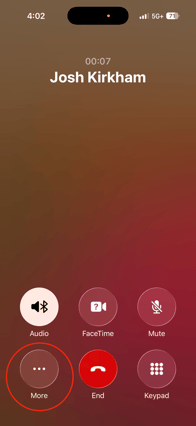
During an active call, tap More (the ··· button) in the call controls. In the menu that appears, tap Call Recording — Transcribe and Summarize.
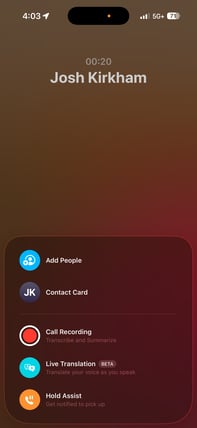
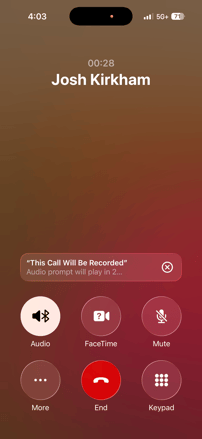
Your phone will display a countdown and then play an audio announcement to both parties: "This Call Will Be Recorded." Recording begins immediately after.
A recording bar with a timer appears at the bottom of the call screen. You'll also see a "Take notes on this call" notification from the Notes app.
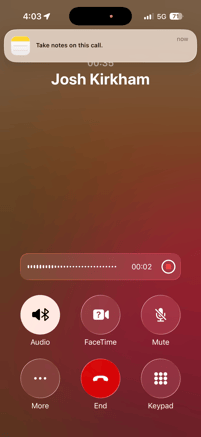
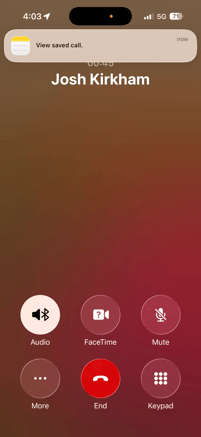
When the call ends, iOS saves the recording to the Notes app automatically. You'll see a "View saved call" notification. Click the notification to go to the saved recording.
Step 2: Find your recording in the Notes app
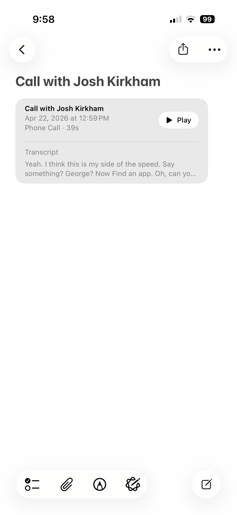
Open the Notes app — not Voice Memos, not Phone Recents. Look for a note titled Call with [Contact Name] with the date and duration of your call.
The note shows the recording, duration, and a transcript generated by iOS.
Tip: iOS shows a "Take notes on this call" notification banner during recording. When the call ends, the recording is saved to Notes automatically, you don't need to do anything to trigger it.
Step 3: Share the recording to CoRecruit
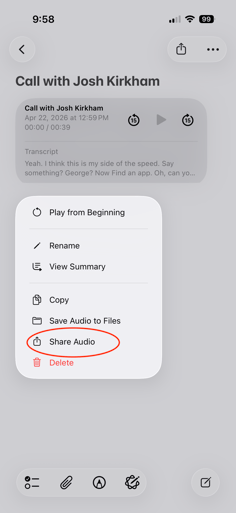
- Inside the note, long press the play button on the audio recording.
- Tap Share Audio. In the share sheet that appears, tap CoRecruit (shown as Quil if you haven't updated the app yet).
- CoRecruit will send you an app notification to start the upload flow. Tap the notification to start upload.
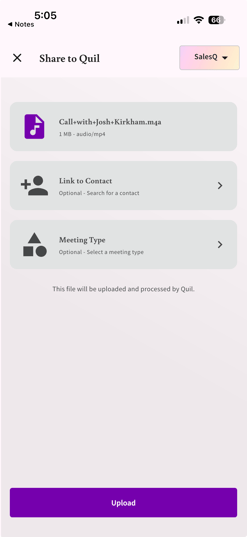
Step 4: Select Meeting Type, Pick a Contact and Upload
CoRecruit will open and give you options to link a contact and select a meeting type. Select the appropriate options and tap upload.
CoRecruit immediately starts processing your audio. You can navigate away — processing continues in the background.
Step 5: Your meeting appears
Once processing is complete, the meeting shows up in your Meetings list in CoRecruit, with a full transcript, speaker-attributed content, AI summary, and notes, ready to associate with a contact, assign a meeting type, and sync to your ATS.
Android
Step 1: Start recording during your call
During an active call, tap the options menu and select Record. Recording starts immediately.
Note: The exact location of the Record button varies by manufacturer and Android version — look for it in the options or overflow menu during your call.
Step 2: Find your recording after the call
Open your device's file manager app and navigate to Internal storage → Recordings → Call. Files are named in the format: Call recording [phone number]_[timestamp].m4a.
Note: Android does not generate a transcript alongside the recording. CoRecruit will build the transcript entirely from the audio.
Step 3: Share the recording to CoRecruit
- Long-press the recording file to select it.
- Tap Share.
- In the share sheet, tap CoRecruit.
Step 4: Select Meeting Type, Pick a Contact and Upload
CoRecruit will open and give you options to link a contact and select a meeting type. Select the appropriate options and tap upload.
CoRecruit immediately starts processing your audio. You can navigate away — processing continues in the background.
Step 5: Your meeting appears
Once processing is complete, the meeting shows up in your Meetings list in CoRecruit — with a full transcript, speaker-attributed content, AI summary, and notes, ready to associate with a contact, assign a meeting type, and sync to your ATS.
Frequently asked questions
Why can't I find my recording in Voice Memos or Phone Recents on iPhone?
On iPhone, call recordings made with the built-in recording feature are saved to the Notes app — not Voice Memos. Look for a note titled "Call with [Name]" with the date and time of the call. It will also contain the iOS-generated transcript.
Do I need to be logged into CoRecruit before sharing?
Yes, CoRecruit needs to be installed and you need to be signed in. If you're not logged in when you share, CoRecruit will prompt you to sign in first and then resume the upload once you do.
Can I share a file that isn't an M4A?
CoRecruit accepts M4A audio files from native iOS and Android call recordings. If you share an unsupported file type, CoRecruit will show an error. Only native phone call recordings in M4A format are supported in this flow.
Can I share multiple recordings at once?
No — share one recording at a time. If you select multiple files, CoRecruit will accept the first and let you know the others weren't processed.
How long does processing take?
Processing time depends on call length and follows the same pipeline as every other meeting in CoRecruit. You don't need to stay in the app — come back to your Meetings list when you're ready and it will be there.
Does CoRecruit replace its own transcription with the iOS transcript I paste?
No. CoRecruit always generates its own independent transcript from the audio. The iOS transcript you paste is stored separately and used only to help identify speaker names — it's never a substitute for CoRecruit's transcription.
What happens if processing fails?
CoRecruit will show an error message. Check your network connection and try again. If the issue persists, contact support at help.corecruit.com.