.png?width=300&height=76&name=Logo_Chromatic(Formerly%20Quil%20LG).png)
These settings are team-scoped, meaning any words or corrections added by one team member apply across the whole organisation. No more each person maintaining their own dictionary — set it once, and everyone benefits.
Team Vocabulary
Team Vocabulary lets you add words and phrases that CoRecruit should listen for during transcription. When a word or phrase is in your vocabulary, the transcription engine pays special attention to it, making it far less likely to mishear or miswrite industry-specific terms, product names, company names, or recruiter-specific language.
Think of it as training the transcript to speak your language. Terms like "Boolean search," "ATS," "passive candidate," or niche tech stacks that might otherwise get garbled will be transcribed correctly once added.
You can add single words or phrases of up to 6 words. All vocabulary terms are shared across your team.
Custom Spellings
Custom Spellings lets you fix recurring misspellings in your transcripts. You map the incorrect form (what the transcript often writes) to the correct spelling (what it should say). Whenever the transcription engine produces the wrong version, CoRecruit will automatically replace it with the right one.
This is especially useful for names, brand names, or technical terms that sound like common English words, for example, mapping "sequel" to "SQL," or ensuring your company name is always capitalised correctly.
What CoRecruit Sends Automatically
You do not need to manually add participant names, your team name, or common company names. CoRecruit takes care of this for you. The following are sent to the transcription engine automatically wherever possible:
- Names of meeting participants (interviewers, candidates, and clients on the call)
- Your team name
- Company names associated with the meeting, where available
This means you can focus your vocabulary list on industry terms, product names, and jargon and not on the people in your meetings.
How to Access Vocabulary & Custom Spellings
You can access this feature from your Settings page.
- Go to Settings by clicking the gear icon (⚙️) in the top navigation bar.
- Click on "General" in the left-hand sidebar.
- Find the "Vocabulary & Custom Spellings" row and click Manage.
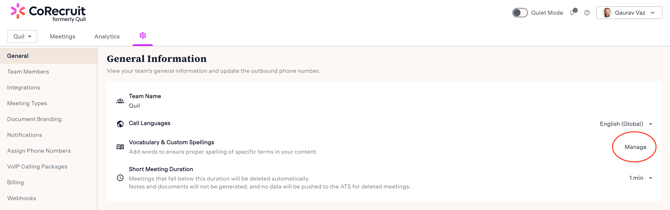
Managing Team Vocabulary
Viewing Your Vocabulary
Once you open the Vocabulary & Spellings page, you will land on the Team Vocabulary tab. This is where all your team’s saved words and phrases are listed. If no terms have been added yet, you will see an empty state prompting you to get started.
Once terms have been added, they appear in alphabetical order by default. You can search for a specific word or phrase using the search bar, or change the sort order using the A–Z dropdown.
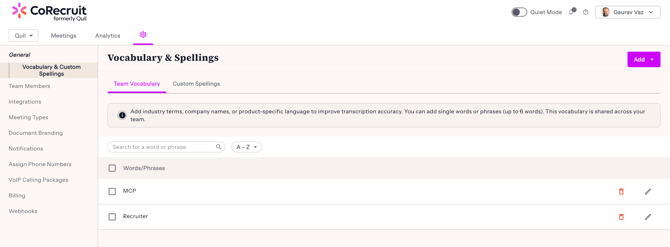
Adding a New Vocabulary Term
To add a new word or phrase to your Team Vocabulary:
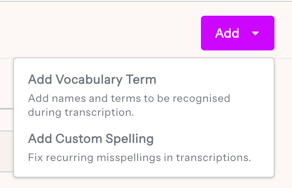
- Click the purple "Add" button in the top-right corner of the page.
- Select "Add Vocabulary Term" from the dropdown menu.
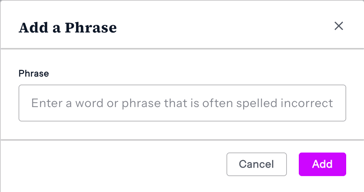
- In the modal that appears, type the word or phrase in the "Phrase" field. You can enter a single word or a phrase of up to 6 words.
-
Click "Add" to save it.
Good candidates for your vocabulary: job titles specific to your industry, specialised tech stacks, product or platform names, recruiter-specific acronyms and frameworks, niche certifications or methodologies.
Editing or Deleting a Term
Each term in the list has two action icons on the right:
- Click the pencil icon (✏️) to edit a term.
- Click the red trash icon (🗑️) to delete a term.
Changes take effect for transcriptions going forward.
Managing Custom Spellings
Viewing Your Custom Spellings
Click the "Custom Spellings" tab at the top of the Vocabulary & Spellings page. You will see a two-column list: the word or phrase that you want spelled correctly (left column), and the corresponding incorrect spellings for it (right column).
Adding a New Custom Spelling
To add a custom spelling correction:
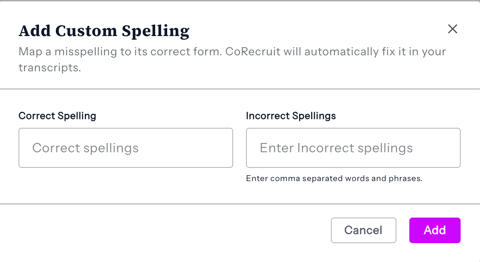
- Click the purple "Add" button in the top-right corner.
- Select "Add Custom Spelling" from the dropdown.
- In the modal, enter the correct word in the "Correct Spelling" field on the left.
- Enter the Incorrect spelling(s) in the "Incorrect spellings" field on the right. You can enter multiple incorrect spellings separated by commas.
- Click "Add" to save.
When the incorrect spelling appears in a transcript, it will automatically be replaced with the correct version you specified.
Editing or Deleting a Custom Spelling
Like vocabulary terms, each custom spelling entry has edit and delete icons on the right side of the row. Changes take effect for future transcriptions.
Tips for Getting the Most Out of This Feature
- Start with the terms that trip up your transcripts most often. Run a few meetings and note anything that consistently comes out wrong.
- Use Custom Spellings for proper nouns and technical terms that sound like real English words (e.g., names of software platforms, certifications, or company names with unusual capitalisation).
- Use Team Vocabulary for role titles, frameworks, or niche acronyms that the transcription engine might not recognise.
- Remember that participant names are added automatically and you do not need to add them manually.
- As team lead or admin, keep this list maintained as your team’s work evolves. A well-maintained vocabulary leads to noticeably cleaner transcripts over time.
Frequently Asked Questions
Is this shared across the whole team or just for me?
Both Team Vocabulary and Custom Spellings are team-scoped. Any term you add is immediately active for all members of your team. Previously, CoRecruit had a per-user custom dictionary; this has now been replaced with team-level settings so that your entire organisation benefits from a single, consistent vocabulary.
How many words can I add?
You can add single words or phrases of up to 6 words to your Team Vocabulary. There is a hard cap of 1000 phrases of up to 6 words each that you can add, though we recommend keeping the list focused on terms that genuinely impact transcription quality.
Do these changes apply to past meetings?
No. Vocabulary and custom spelling changes apply to transcriptions going forward. Past meeting transcripts will not be retroactively updated. If you want to process a specific meeting in the past, you can go to that meeting's detail page and reprocess it by changing the meeting type.
Why are some names already correct without me adding them?
CoRecruit automatically sends the names of participants on the call, your team name, and associated company names to the transcription engine. You will only need to manually add names that are referenced in conversation but not present as participants.
What is the difference between Team Vocabulary and Custom Spellings?
Team Vocabulary tells the transcription engine to listen for and recognise specific terms. It improves the chance a term is picked up correctly in the first place. Custom Spellings is a post-processing correction: if a word is still transcribed incorrectly, the wrong version is automatically swapped for the right one.