.png?width=300&height=76&name=Logo_Chromatic(Formerly%20Quil%20LG).png)
How to Setup
Setup of the CoRecruit for Zoom Phone integration requires only an active Zoom Phone account with login details.
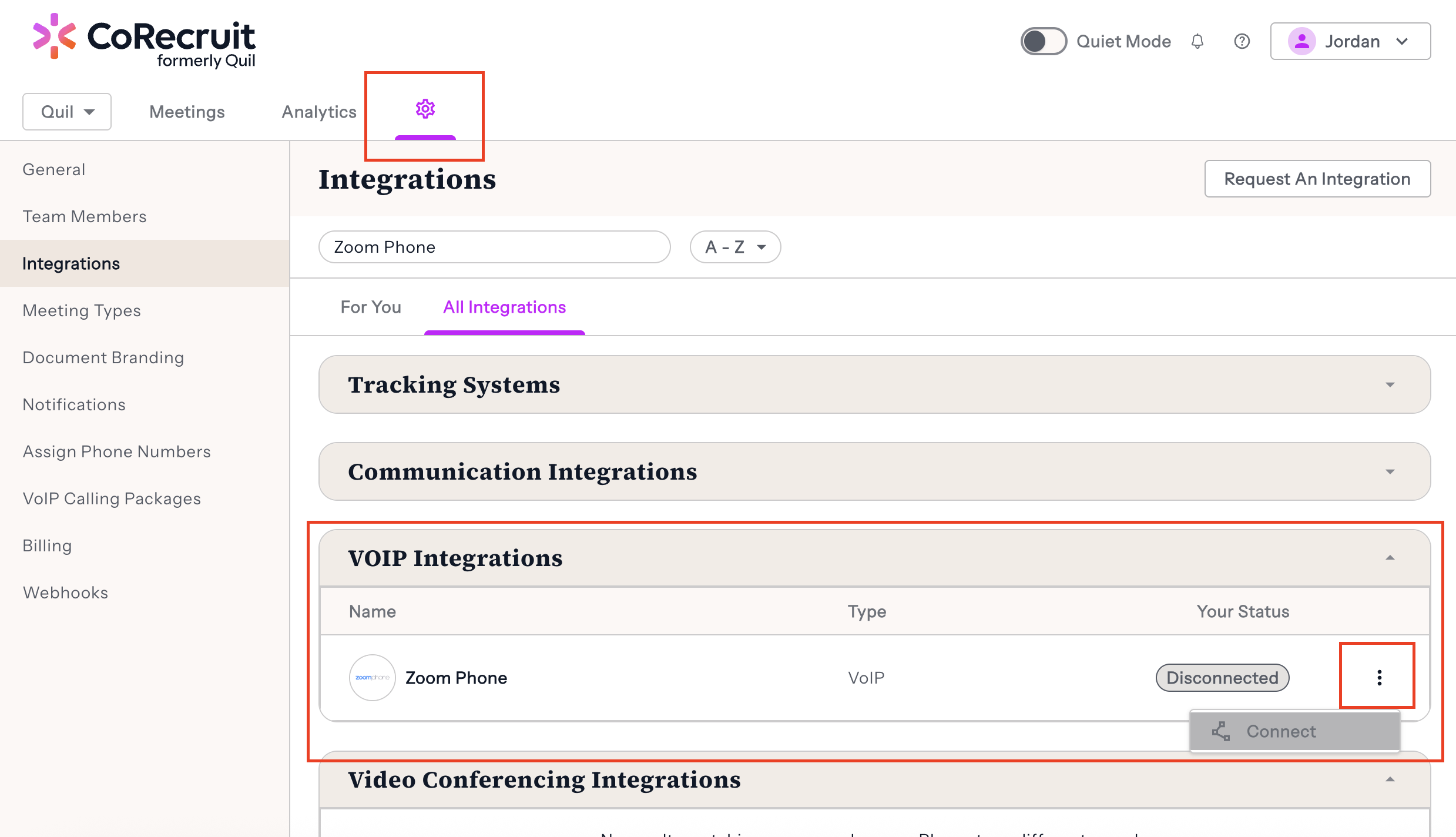
Navigate to the CoRecruit Integration page and select the "All Integrations" tab. Using the search bar, search for Zoom Phone. Clicking overflow menu (three dots) you can then select "Connect"
Clicking "Connect" will prompt you to authenticate with Zoom. After the page loads back to CoRecruit, you will be integrated with Zoom.
 |
For more details on where to setup your integration please this article on managing you integrations
Looking for CoRecruit for Zoom Meetings? We have a separate app for that! To record Zoom video calls, please see CoRecruit for Zoom Meetings
Zoom User Permissions
In order for CoRecruit to download Zoom Phone recordings, you must have Access, Download and Delete permissions for Zoom Recordings.
Open Zoom Account Settings
- Navigate to "ADMIN" via the left side panel.
- Select "Account Management" -> "Account Settings"
- Search for "Ad Hoc Call Recording" and "Allow user to access to their own recording". Ensure Download and Delete are checked.
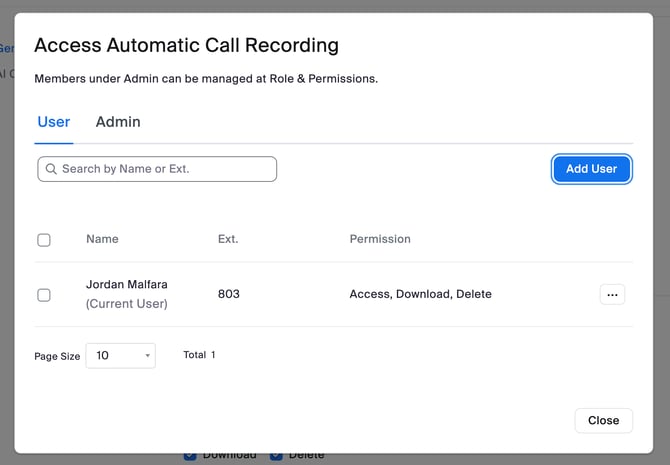
- If using Automatic Recording, you may be required to add users to it's Access Member List.
Some users may need to enable additional permissions in Zoom.
Open Zoom Account Settings
- Navigate to "ADMIN" via the left side panel.
- Select "Phone System Management" and select your user.
- Navigate to the "Policy" tab
- For "Automatic Call Recording" select "Access Member List" and add your users with the "Access", "Download" and "Delete" permissions
- For "Ad Hoc Call Recording" select "Access Member List" and add your users with the "Access", "Download" and "Delete" permissions. Also be sure to check all the "Allow user to access to their own recording" check boxes.
Using the Integration
After connecting your Zoom Phone account, CoRecruit will be notified of any calls that have been recorded and will process them. CoRecruit can only process calls that have been recorded in Zoom Phone.
For information on how to record calls in Zoom Phone, please refer to their documentation Recording Settings
Call Processing
After a call has been received by CoRecruit, the data will be processed, linked, and uploaded your database records. When using the integration all database (ATS, CRM) records are linked via phone number automatically.
Disconnecting the Integration
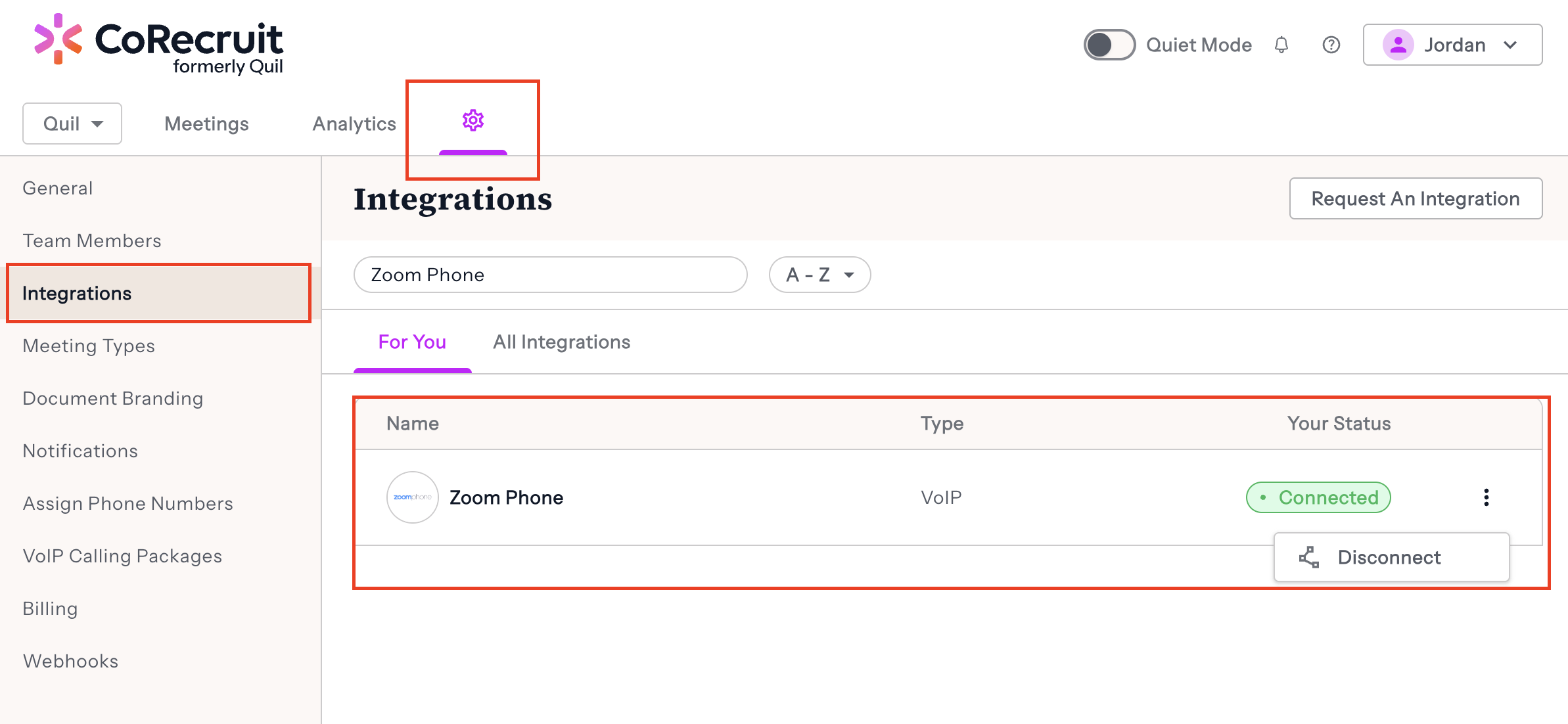
To disconnect the CoRecruit integration, please navigate to the CoRecruit integrations page. There you will see Zoom with options to either disconnect the integration.
 |
Still need help? Don't hesitate to reach out to us via support@corecruit.com for any questions.