
Before you start
You need:
- A CoRecruit account. The extension uses the same email and password as the CoRecruit web app.
- Google Chrome.
- Your ATS connected to CoRecruit, so the extension can recognize records. See How to manage your integrations.
Install the extension
- Open the CoRecruit extension page in the Chrome Web Store. You can also find the link in your “Getting Started with CoRecruit” email, or search for “CoRecruit” in the Chrome Web Store.
- Select Add to Chrome, then select Add extension. Chrome lists the permissions the extension needs before you confirm.
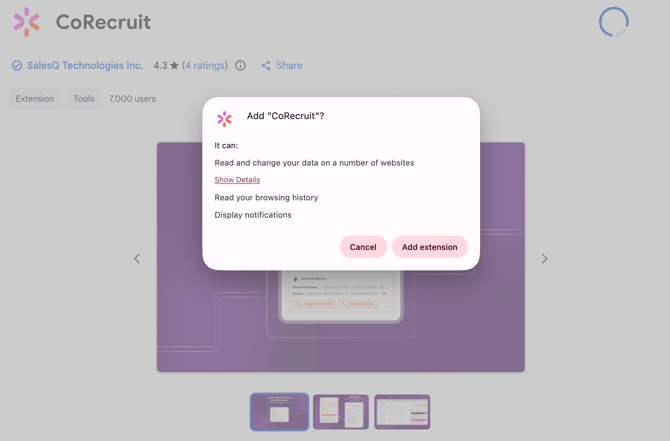
- Wait for Chrome to confirm that CoRecruit has been added. A welcome tab opens automatically.
- On the welcome tab, select Allow microphone. When Chrome asks for permission, select Allow. CoRecruit shows “Microphone access granted” when it works. Close the tab.
- Pin the extension so it stays in your toolbar. Select the puzzle piece icon in the top right of Chrome, then select the pin icon next to CoRecruit.
- Select the CoRecruit icon in your toolbar. The extension opens as a panel on the right side of your browser.
- Enter your email and password, then select Sign in. If you forgot your password, select Forgot password?. If you don’t have an account yet, select Contact us.
Note: Chrome asks for microphone access once. If calls have no audio later, check your microphone settings as described in Settings.
Get around the panel
When you open CoRecruit, the panel shows what you can do on the page you’re viewing.
| Area | What it does |
|---|---|
| Team name | Shows the team you’re working in. Select it to open a menu and switch teams. |
| Gear icon | Opens Settings. |
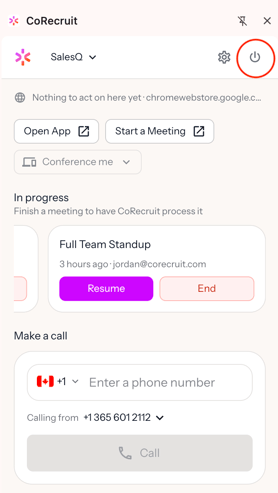
| Power icon | Turns quiet mode on or off. See Pause incoming calls with quiet mode. |
| Page status | Shows Record found with the site name when CoRecruit recognizes a record. Shows Nothing to act on here yet when it doesn’t. |
| Open App | Opens the CoRecruit web dashboard. |
| Start a Meeting | Starts a new meeting in CoRecruit. |
| In progress | Lists meetings you started but haven’t finished. |
| On this page | Shows the contact CoRecruit found on the page. If the record has a phone number, you see a Call button. If not, you see Start a meeting. |
| Make a call | Lets you dial any number. |
Call from a record in your ATS
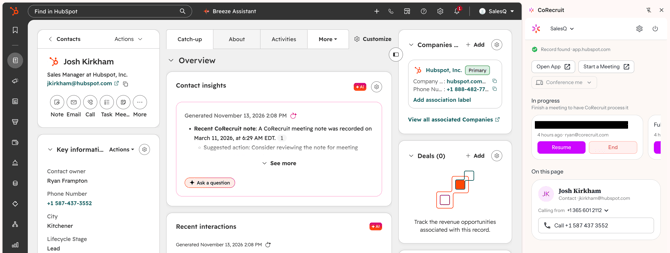
When you open a contact or candidate record, CoRecruit finds it and shows it in the panel. What you see next depends on whether the record has a phone number.
If the record has a phone number
- Sign in to your ATS and open a contact or candidate record that has a phone number.
- Select the CoRecruit icon in your toolbar.
- Under On this page, check the number shown next to Calling from. Select it to choose a different number.
- Select the Call button, which shows the contact’s number.
CoRecruit places the call and records it, so you can start talking right away. When you finish, CoRecruit transcribes the call and pushes the notes to the record. You can review the call from the overview page in CoRecruit.
If the record has no phone number
CoRecruit can’t show a call button without a number, so you start a meeting instead.
- Sign in to your ATS and open a contact or candidate record.
- Select the CoRecruit icon in your toolbar.
- Under On this page, select Start a meeting.
- On the Meeting screen, select Connect call. The dialer opens. Enter the number you want to call and place the call.
- Take notes in the Notes tab during the call if you want to. Use the Type menu at the top to change the meeting type, and the pencil icon to rename the meeting.
- Select End when you finish.
The Meeting screen also shows other ways to connect to the meeting.
Tip: Add the phone number to the record in your ATS. Next time, you can call with one click from the panel.
Resume or end a meeting
Meetings you started but haven’t finished appear under In progress. CoRecruit processes a meeting once you finish it. Select Resume to return to the meeting, or End to finish it. If you have more than one meeting in progress, swipe sideways to see them all.
Pause incoming calls with quiet mode
Quiet mode stops calls from ringing in the extension, which helps when you’re in a meeting or need to focus. Select the power icon in the top right of the panel to turn it on. Hover over the icon to see Shut down calling. Select the icon again to turn quiet mode off. Calls then ring through to the extension again.
Settings
Select the gear icon in the panel to open Settings. Your name and email appear at the top. Select the back arrow to return to the panel.
Calling
| Setting | What it does |
|---|---|
| Microphone access | Shows Allowed when Chrome has given CoRecruit your microphone. |
| Auto-connect calls | Dials immediately when a meeting starts with a phone number. |
| Call routing location | Chooses which location handles the audio for your calls. It applies to your calls across every team. The default is Automatic (lowest latency). |
Audio devices
Use the Microphone and Speaker menus to choose the devices CoRecruit uses for calls. Both default to your computer’s default devices.
To check your connection, select Run test next to Test call quality. CoRecruit places a short test call and reports any network issues.
Caller ID
Under your team name, the Caller ID menu sets the default number CoRecruit calls from. For more on caller ID, see How to Set a Default Caller ID.
Tip: For automatic dialling, turn on Auto-connect calls and choose a Caller ID. Both need to be set.
AI contact detection (Experimental)
AI contact detection is a new, experimental feature. When it’s on, the extension uses a lightweight AI model built into the extension to find phone numbers on the ATS or CRM page you have open, so you can call them from the panel. Select Allow to turn it on.
Account
Select Sign out to remove all your account data from this browser. The extension version appears at the bottom of Settings. Have it ready if you contact support.
Frequently asked questions
Why can’t the other person hear me, or why can’t I hear them?
Open Settings and check that Microphone access shows Allowed. Then check the Microphone and Speaker menus under Audio devices, and select Run test to look for network problems. If the problem continues, see Troubleshooting CoRecruit Audio Issues.
Why aren’t calls ringing in the extension?
Quiet mode may be on. Select the power icon in the top right of the panel to turn it off. Calls then ring through again.
Why does the panel say “Nothing to act on here yet”?
CoRecruit shows this message on pages where it doesn’t recognize a record. Open a contact or candidate record in your connected ATS to see Record found. You can still use Make a call on any page.
How do I turn on automatic dialling?
Open Settings. Under Calling, turn on Auto-connect calls. Under your team name, choose a Caller ID. CoRecruit then dials as soon as a meeting starts with a phone number.
How do I change the number I call from?
For a single call, select the number next to Calling from under Make a call. To change your default, go to Settings and choose a different Caller ID.
Why don’t I see a call button on a record?
CoRecruit shows the Call button under On this page when the record has a phone number. If there is no number, select Start a meeting under On this page, then select Connect call to enter a number in the dialer.”
How do I switch teams?
Select your team name at the top of the panel, then choose the team you want from the menu.
How do I sign out of the extension?
Open Settings, scroll to Account, and select Sign out. This removes all your account data from the browser.
If you need more help, reach out to your main point of contact at CoRecruit or email support at support@corecruit.com.