.png?width=300&height=76&name=Logo_Chromatic(Formerly%20Quil%20LG).png)
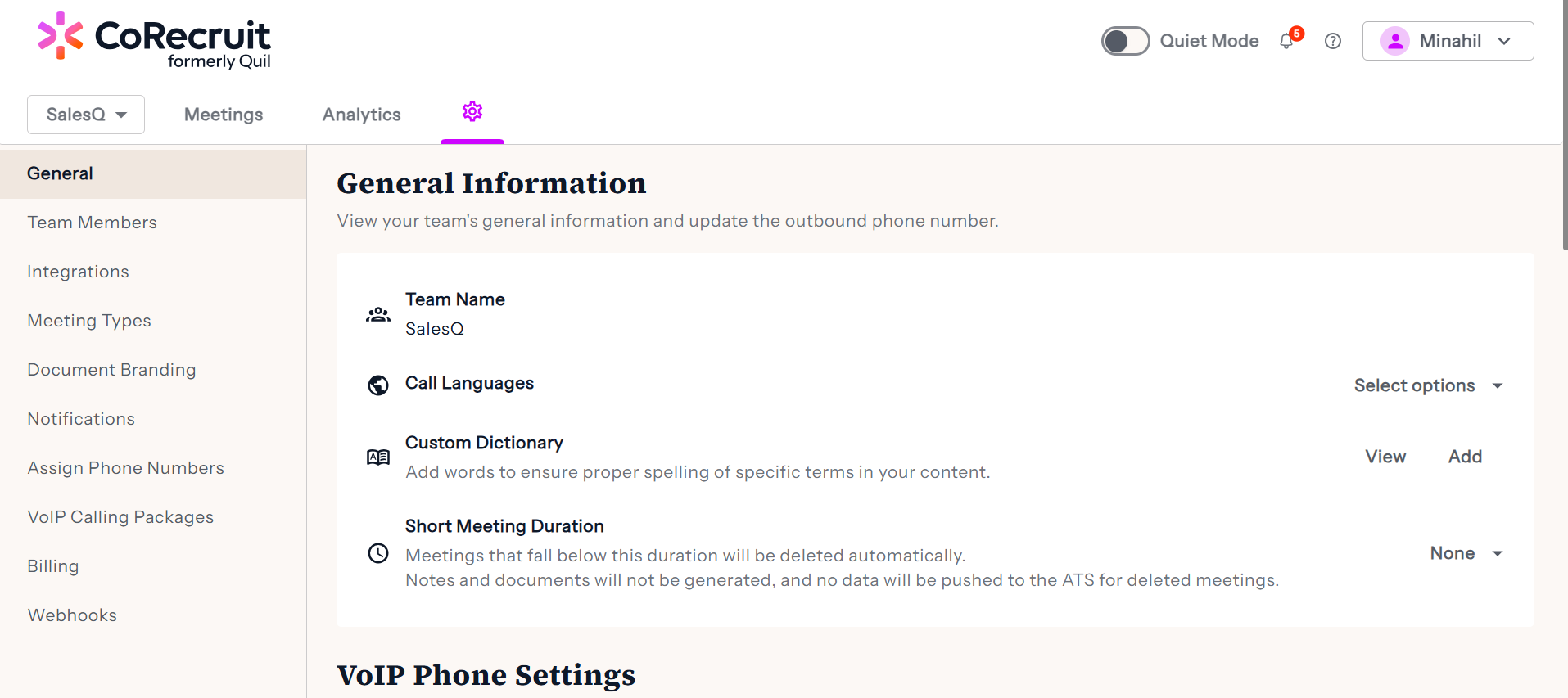
1. Navigate to Team Settings
Start by opening CoRecruit then select the gear icon located on the top navigation bar. You will be navigated to the Team Settings page. Go to "General".
2. Scroll to Bot Settings
Scroll down the General tab until you find the Bot Settings section
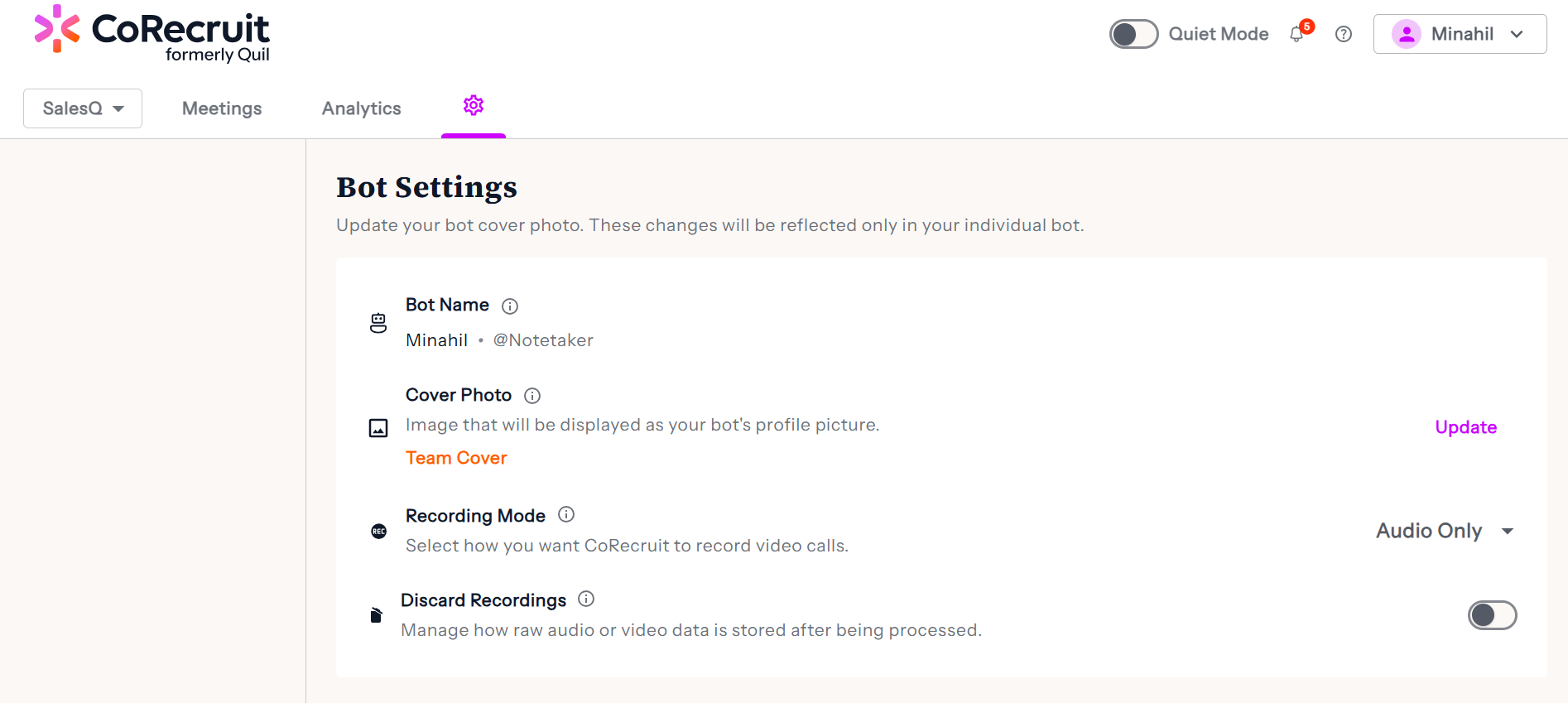
3. Update Bot Cover Photo
Select the "Update" button for "Cover Photo". After selecting the photo press "Update" to save your new photo.
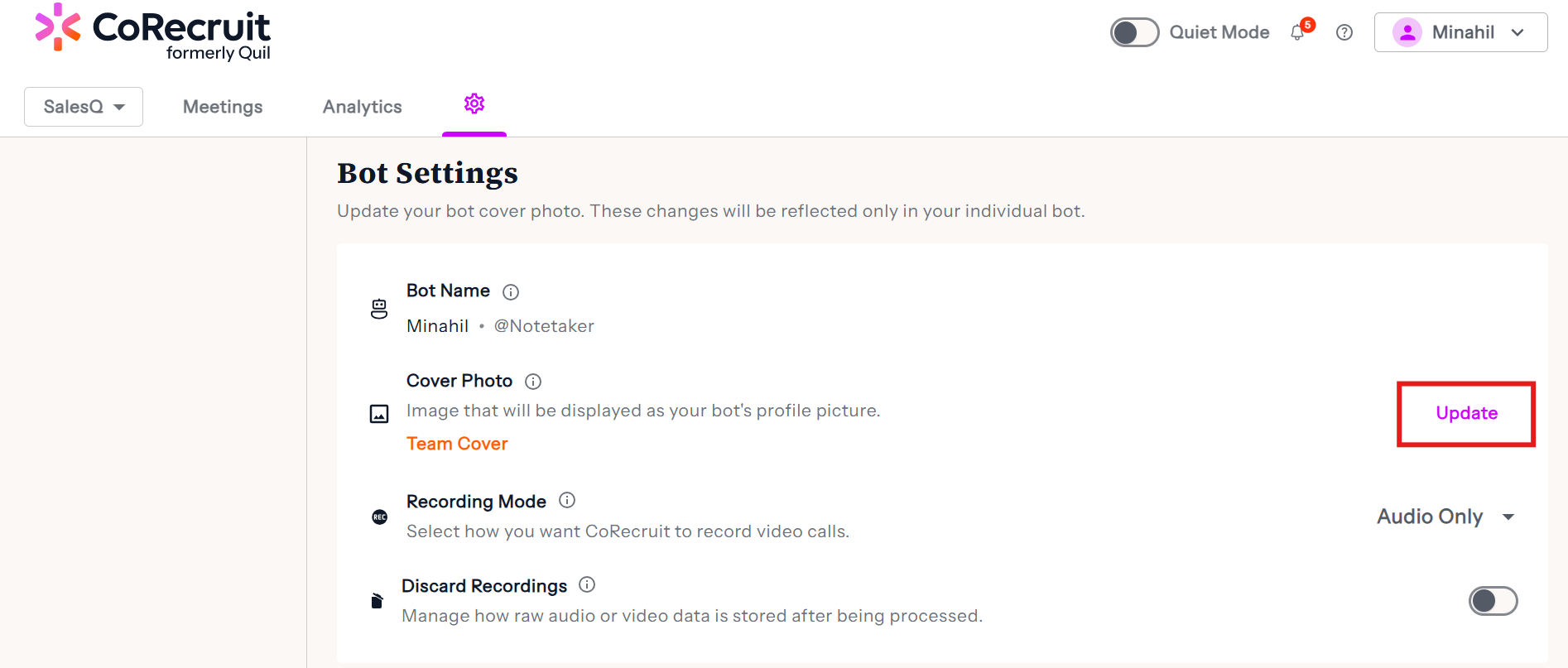
If you wish to update the cover phone for all team members, please select the "Team Cover" button instead.
Please note that bot cover photos may not be immediately reflected after uploading a new photo. Calls that are already scheduled in CoRecruit may continue to use the old image.
To ensure CoRecruit bot are using the latest cover photo please disconnect and reconnect your calendar integration. For more information on how to do that please see How to Manage your CoRecruit Calendar