.png?width=300&height=76&name=Logo_Chromatic(Formerly%20Quil%20LG).png)
How it works
After connecting Ringover with your CoRecruit account, any calls you make in Ringover that are recorded will automatically be sent over to CoRecruit for processing. CoRecruit will produce notes, and follow-up material as well as update you ATS.
How to Setup
Setup for CoRecruit's integration with Ringover is a two step process. A Ringover admin is needed for the initial connection.
For more details on where to setup your integration please this article on managing you integrations
Prerequisites
To setup the integration with Ringover you will require your CoRecruit Team ID, Ringover Webhook Key, and Ringover API Key.
CoRecruit Team ID
You can find your CoRecruit Team ID by navigating to your team settings and reading the URL of the page.
1. Click on the Setting gear highlighted in red.
2. Copy your Team ID highlighted in yellow.
Store the team ID somewhere as we will need it for the next step.
Ringover Webhooks
The CoRecruit integration requires a Ringover admin to create a new Ringover webhook.
1. Navigate to https://dashboard.ringover.com/webhooks
2. Active the "Call Event" webhooks.
3. Copy this link. https://production-eastus-webhooks-ringover.quil.app/v1/webhooks-ringover/
4. Paste the link in the "Calls ended" then edit it and replace with the CoRecruit Team ID you copied in the earlier step. The link should look something like "https://production-eastus-webhooks-ringover.quil.app/v1/webhooks-ringover/abcd1234abcd1234"
5. Copy and store your Webhook Key which is highlighted red in the screenshot below. You will need it for the last step.
Ringover API Key
The CoRecruit integration requires a Ringover admin to create a new Ringover API key.
1. Navigate to https://dashboard.ringover.com/api
2. Click "Create API Key"
3. Select your account name for "who" and type CoRecruit for "label"
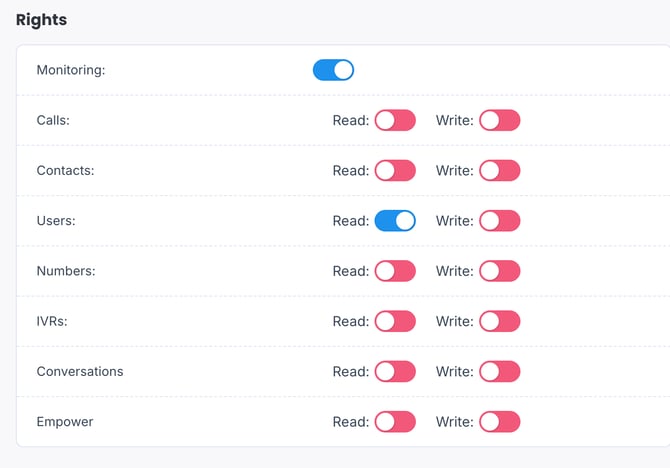
4. Edit the API Key to include the following Rights. Users - Read
4. Copy and store your newly created API key. You will need it for the next step.
Connect Team
From the CoRecruit integration page, scroll down to the VOIP section and find Ringover. Click on the "Connect Team" then enter in your API Key, Webhook Key and click "Connect".
Please note, that to connect the Ringover team to CoRecruit requires admin permissions in Ringover and Owner permissions in CoRecruit.
Connect Account
From the CoRecruit integration page, scroll down to the VOIP section and find Ringover. Click on the "Connect Account" then enter in your Ringover email address
For your CoRecruit account to be fully integrated you must have your account and team connected.
If you have any questions, please don't hesitate to reach out to us via support@corecruit.com.