.png?width=300&height=76&name=Logo_Chromatic(Formerly%20Quil%20LG).png)
Note: To call from the CoRecruit extension, please make sure to fully set-up your CoRecruit Extension, and to integrate with your ATS system.
There are two ways to call from the CoRecruit Extension: From inside of a candidate record inside of your ATS, or from any page from your browser manually.
From Inside of your ATS
If you have correctly set-up your extension, and you have integrated with your ATS you will be able to call with just a few clicks using CoRecruit!
From inside of a candidate record that has at least a name and a phone number, you will be able to call
- Login to your ATS
- Open a Candidate Record (may vary depending on your ATS)
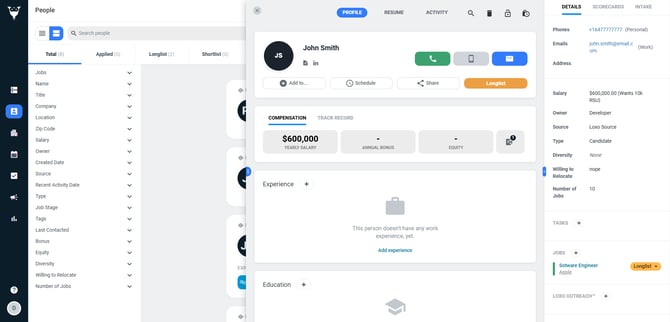
- Open the CoRecruit Extension
Once you have completed these steps you will see a blue "start a call" card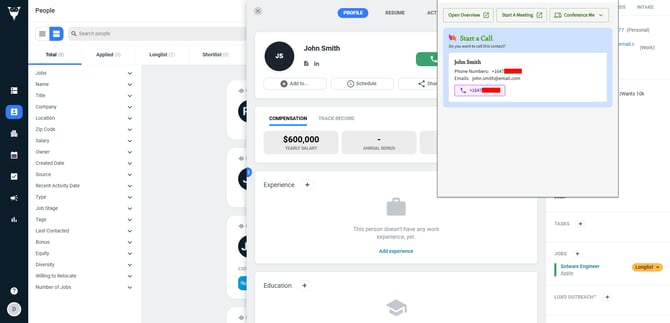
- By clicking on the purple tag with the phone number CoRecruit will automatically call that number, transcribe the call, and have the notes pushed to the record.
You can then take a look at the completed call from the overview page.
From Any Page Inside your Browser
By clicking on the CoRecruit extension from any other page inside of your browser, you can start a meeting using the manual green card.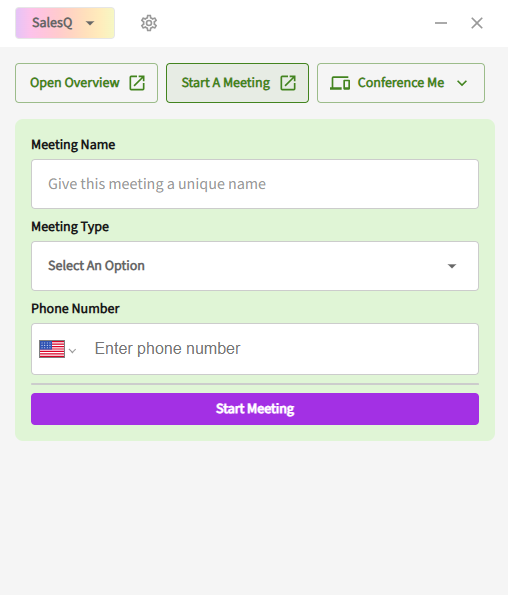
After filling out all the required information, you will then be able to start the meeting with a call from the extension by clicking "Start Meeting".
If you require additional help, reach out to your main point of contact at CoRecruit or email support at support@corecruit.com.